User steps
Find User
Use the Find User step to look up the ID and target name of an xMatters user based on specific values of a selected property (such as the user's email address, target name, web login, or the value of a custom user property). For example, you could use this step to look up a user who has the value "Rigel" in a Team Lead field, and then use the output from this step to set that person as the recipient of a connected Create Alert Using a Form step.
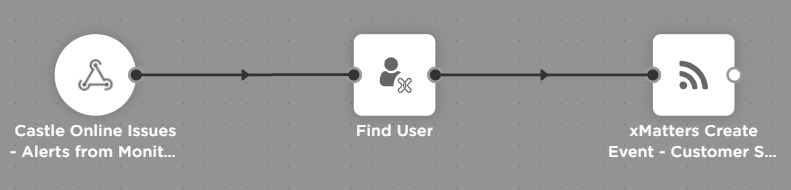
If there is more than one matching user, only the first user is returned. The outputs provide the unique identifier (UUID) and target name of the first user that matches the search criteria.
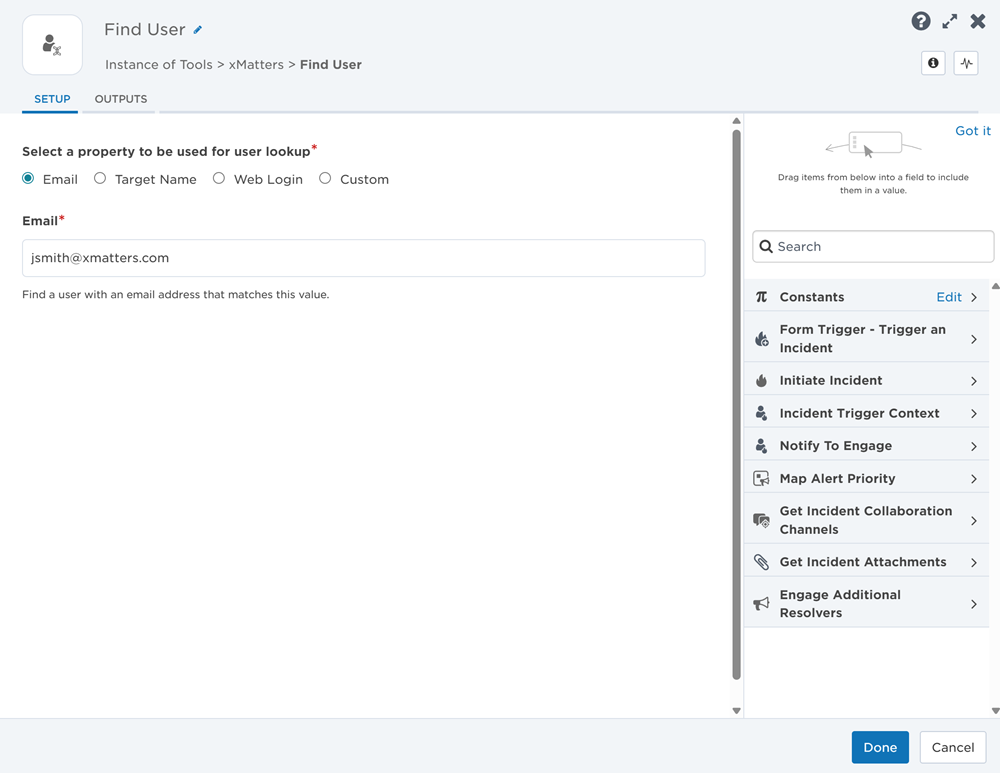
 Set up a Find User step
- Drag a Find User step onto the canvas.
- Double-click the step to open the setup screen (or move your cursor over the step and click the pencil icon).
- Edit the Step Label to give the step a unique label for the particular flow.
- Select a property to use for the user lookup:
- Select Email and enter an email address.
- Select Target Name and enter a target name.
- Select Web Login and enter a web login ID.
- Select Custom and enter a custom user property (using plain text or a constant) that you want to find a value for into the Custom Property Name field, and a value (using plain text or an output from the previous step) that you want to find a match for into the Custom Property Value field.
- Click Done.
- Click Save on the canvas.
The Find User step uses the xMatters endpoint, which authenticates using the credentials of the user who triggered the flow.
Find User outputs
| Output | Description | Example |
|---|---|---|
| User ID | UUID of the first xMatters user matching the search criteria. | 25dce2c3-defe-4610-8c55-4c6edbf50496 |
| User Target Name | Target name of the first xMatters user matching the search criteria. | asamara |
| Total User Count |
The total number of users found that match the search criteria. You could connect a custom step that checks if the value of this output is greater than 1, then connect a switch step to take a different path if that is true. |
2 |
Find User Property Value
Use the Find User Property Value step to look up the value of a custom user property based on the ID and target name of an xMatters user. For example, you could look up what value the "Jira SD ID" field holds for user mmcbride and pass that value to a step further downstream so it can set the assignee in Jira.
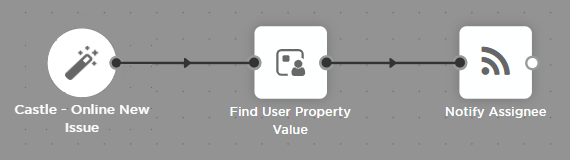
The output provides the value of the specified custom field or attribute.
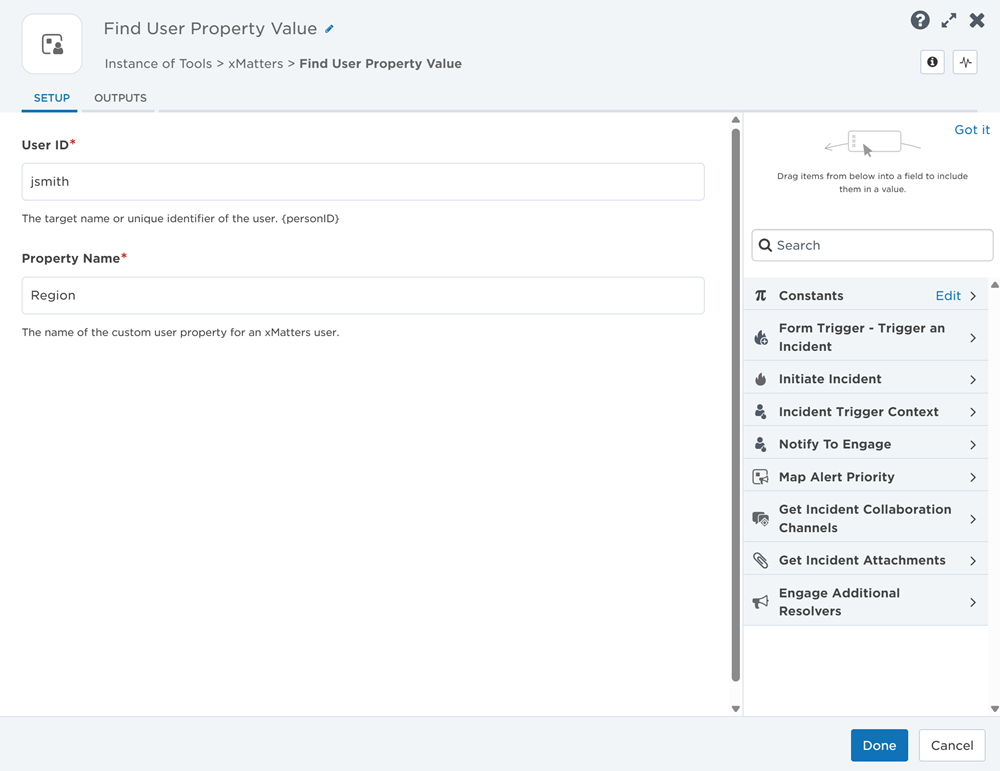
Set up a Find User Property Value step
- Drag the step onto the canvas.
- Double-click the step to open the setup screen (or move your cursor over the step and click the pencil icon).
- Edit the Step Label to give the step a unique label for the particular flow (for example, "Find ServiceDesk ID").
- Enter the target name or ID of the xMatters user you want to find the value for in the User ID input.
- Enter the name of the custom user property you want to find the value for into the Property Name field.
- If you're repeatedly looking up the value of the same property, you can store the name of the field in a constant, then drag the constant into the input. This helps prevent the flow from tripping over a typo. Otherwise, you can enter plain text or use an existing output from another step in the input field.
- Click OK.
- Click Save on the canvas.
The Find User Property Value step uses the xMatters endpoint, which authenticates using the credentials of the user who triggered the flow.
Find User Property Value step outputs
| Output | Description | Example |
|---|---|---|
| Property Value | Value of the specified custom field or attribute for the specified xMatters user. | marymc3 |
Get User Device
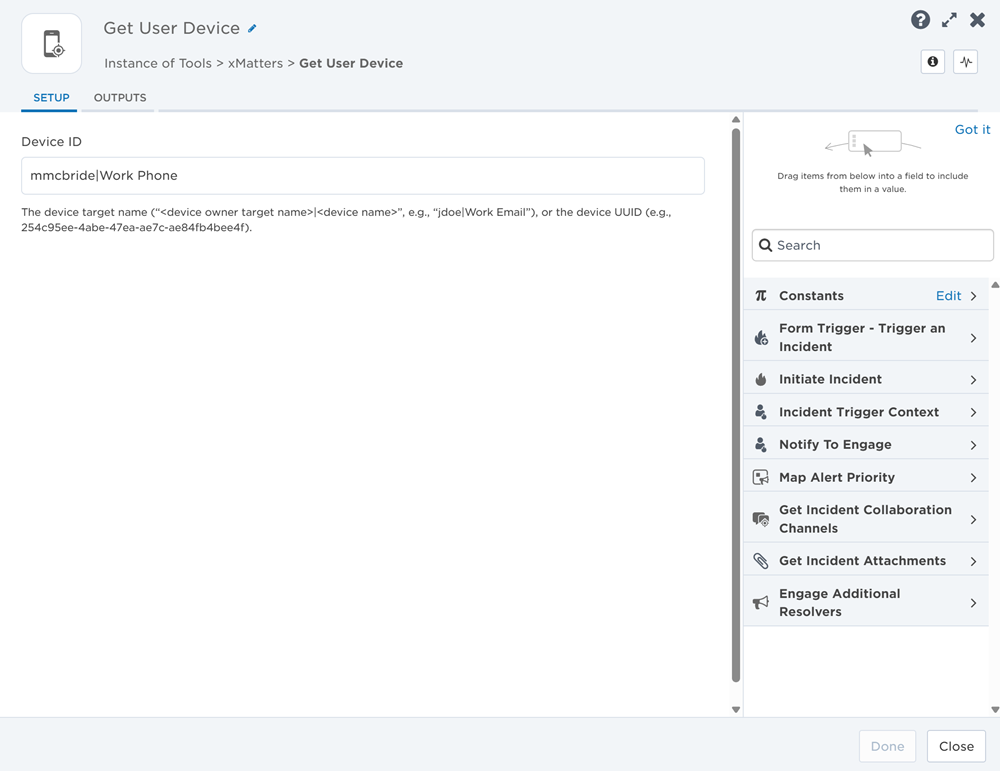
The Get User Device step allows you to retrieve the details of an xMatters user's device and add the details to steps further along in your flow.
Set up a Get User Device step
- Drag the step onto the canvas.
- Double-click the step to open the setup screen (or move your cursor over the step and click the pencil icon).
- Enter a label for the step to identify it in your flow.
- In the Device ID input, enter the device target name (e.g., jdoe|Work Email) or the device UUID (e.g., 254c95ee-4abe-47ea-ae7c-ae84fb4bee4f) of the device you want to get the details of.
- Once you're happy with the settings, click Done.
- Click Save on the canvas.
Find Get User Device step outputs
| Output | Description |
|---|---|
| ID | UUID of the device. |
| Target Name | Target name of the device. |
| Name | Name of the device. |
| Contact | Contact details of the device. For example: jsmith@example.com, +19295551212, 1234 (PIN). |
| Status | Status of the device. Available values are: ACTIVE, INACTIVE. |
| Type | Type of device. Available values are: ANDROID_PUSH, APPLE_PUSH, EMAIL, FAX, GENERIC, TEXT_PAGER, TEXT_PHONE, VOICE, VOICE_IVR, MS_TEAMS_SYNC_CAPABLE. |
| Privileged | If true, the device is marked as privileged. Available values are: true, false. |
| Description | Description of the device name. |
| Test Status | Whether the device has been tested. Available values are: UNTESTED, PENDING, TESTED. |
| Failsafe | If true, the device is set as a failsafe and receives notifications when the owner has no active devices. Available values are: true, false. |
| Alert Priority Threshold | Lowest level priority an alert must have to be delivered to the device. Available values are: LOW, MEDIUM, HIGH. |
| Order | Order in which the device is contacted in the user’s device timeline. “1” represents the first device contacted. |
| Escalation Delay | Number of minutes to wait for a response on this device before the next device is contacted. |
| Two-Way Communication (Pager) | If true, the pager device can receive notifications and send responses back. If false, it can only receive notifications. |
| Country (Fax) | Country code of the fax device. |
| Result | Result returned by xMatters. Available values are: Success, Failure. |