Web Service Audit report
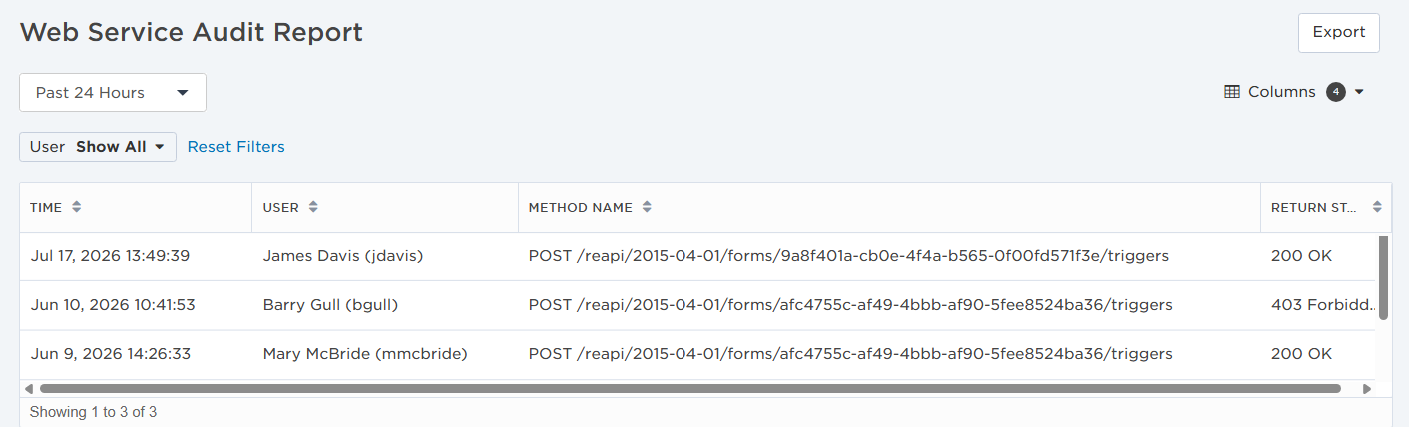
The web service audit report displays how xMatters has been accessed via web services such as the REST API and some integrations. Use the settings on this page to view the web service activity for a specific time period.
To access the Web Service Audit report:
From the side navigation menu, go to Reports > Web Service Audit Report.
The following sections describe how you can use the Web Service Audit report.
 Arrange the report
To more easily view data in the table, do one or more of the following:
- To sort the content of a column in alphabetical or chronological order, click the column header. (Click the header again to reverse the sort order.)
- To change the width of a column, move the pointer over the edge of the column and when the re-size icon appears, click and drag the column to the desired size.
- To rearrange the columns, click and drag a column header to a new location on the table.
- If the list contains more entries or columns than can be displayed on your screen, scroll horizontally or vertically. The system automatically loads more data as you scroll down the page.
Available data columns
The Web Service Audit report includes the following information:
|
Column |
Description |
| Method Name |
The method name of the request. |
| Return Status |
The success or error code for the request. |
| Time | The date and time of the request. |
| User |
The name and targetname of the authenticating user. |
View Web Service Audits by date
The Web Service Audit report includes a date selector you can use to view requests received during a specific timeframe. By default, the report displays Web Service requests from within the last 24 hours, but you can view the report over a variety of past time intervals or over a specific date and time period.
To view Web Service Audit by date:
- Use the date selector to choose one of the following options:
- Past 24 Hours
- Past 7 Days
- Past 30 Days
- Past 60 Days
- Past 90 Days
- Date Range
- If you selected Date Range, use the calendar and time pickers to select a start and end range of up to 90 days, then click Apply.
Filter the Web Service Audit list
The available filter allows you to narrow the Web Service Audit based on matching specific user criteria.
|
Filter |
Values |
| User |
|
Export the report
You can export the contents of the Web Service Audit report as an .xlsx file. This is useful if you'd like to perform additional analysis on the data.
To export the report:
- Filter the report using the search bar, Columns drop-down, or both. All filters applied to the Web Service Audit report, such as changing column order, or alphabetically sorting a column, are preserved in the exported file.
- Click Export to download a spreadsheet containing your report data.