Custom group properties
Custom group properties allow you to define your own metadata fields for groups in xMatters, helping your teams describe and organize groups using attributes which reflect how they operate. These properties can be created and managed from the Admin menu, and group administrators can populate them when creating or editing groups, with selected values displayed on the group overview page.
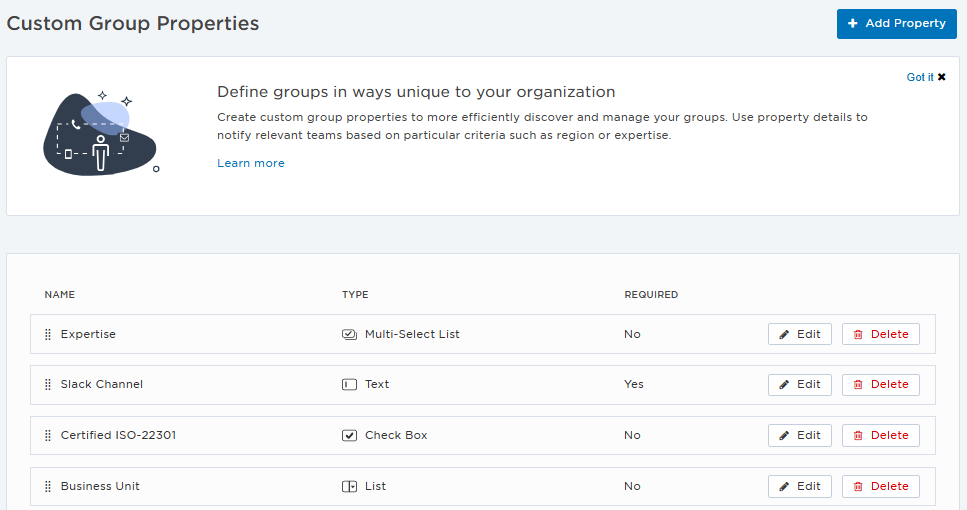
The following sections describe the actions you can perform on the Custom Group Properties page:
 Access the Custom Group Properties page
From the Admin or Settings menu, under Company, click Custom Group Properties.
Add a custom group property
- On the Custom Group Properties page, do one of the following:
- Click Add Property in the top-right corner of the screen.
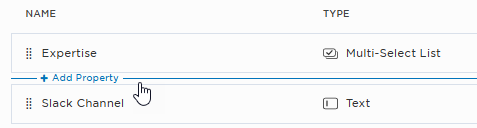
- Hover below a property in the list and click + Add Property when it appears.
- In the Add Property side panel that appears, configure the following settings:
- Name: Give the property a unique name.
- Type: Select a property type. For more information, see Types of group properties. You cannot change the type of a group property after you create it.
- Required: When selected, each group must supply the information required for the field. Leave the check box blank if you want this property to be optional.
- If you selected one of the following property types, configure any additional settings:
- Text: Specify the Min and Max number of characters a group can enter in the field (optional). If you leave Min and Max blank, a default of 1-100 characters is used.
- Number: Specify the Min and Max value limits for the entered value (optional). If you leave these Min and Max blank, a default of 1-2,147,483,647 is used.
- List and Multi-Select List: To add items to the list, specify the item name and click Add.
- To change the order of the items in the list, grab the handle icon next to an item's name and drag it into a new position in the list. To sort all list items alphabetically, click Sort A to Z.
- To remove a list item, click the delete (trashcan) icon for that item.
-
Click Save.
Types of group properties
| Property Type |
Description |
|---|---|
| Text |
Adds a simple text field that allows any characters within the specified Min and Max character limits (up to 100 characters). |
| Number | Adds a field that accepts only numeric values (no decimals). You can specify Min and Max limits for the value entered (up to a value of 2,147,483,647). |
| Check Box |
Adds a check box that users can select or clear to indicate true or false. For example, the name next to a check box property might be 'Available on Weekends'. |
| Password | Adds a field that hides any entered content under an asterisk mask. |
| List |
Adds a drop-down list of predefined values from which users can select a single option. |
| Multi-Select List | Adds a list of predefined values from which users can select one or more options. For example, a "First Aid Training" property might include the options 'Basic', 'Advanced', 'Marine', and 'Wilderness', from which users may select multiple options. |
You cannot change the Type of a custom group property after you add it.
Edit a custom group property
- On the Custom Group Properties page, find the property and click Edit.
- In the Edit Property side panel that appears, edit the property's settings.
- You cannot change the Type of an existing custom property.
- You cannot delete items from a List or Multi-Select list if they're being used as search criteria for a dynamic group.
- Click Save.
Delete a property
When you delete a property, it's removed from the groups' pages, along with any information recorded in those fields. You can't delete custom group properties that are currently used in the search criteria for a dynamic group.
- On the Custom Group Properties page, find the property you want to delete and click Delete.
- A confirmation dialog box appears.
- To confirm you want to delete the property, click Delete.
You can also delete a property while you're editing it by clicking Delete at the bottom of the Edit Property side panel.
Order the list of properties
The order of properties on the Custom Group Properties page determines the order they're listed on in each group's page.
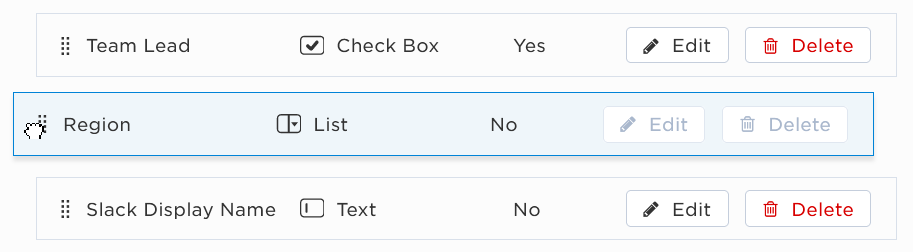
To change the order of the custom group properties, grab the handle icon next to a property name and drag it to a new position in the list.