ServiceNow Data Sync - Users
Once you have created a sync configuration, you can set how to synchronize users between ServiceNow and xMatters.
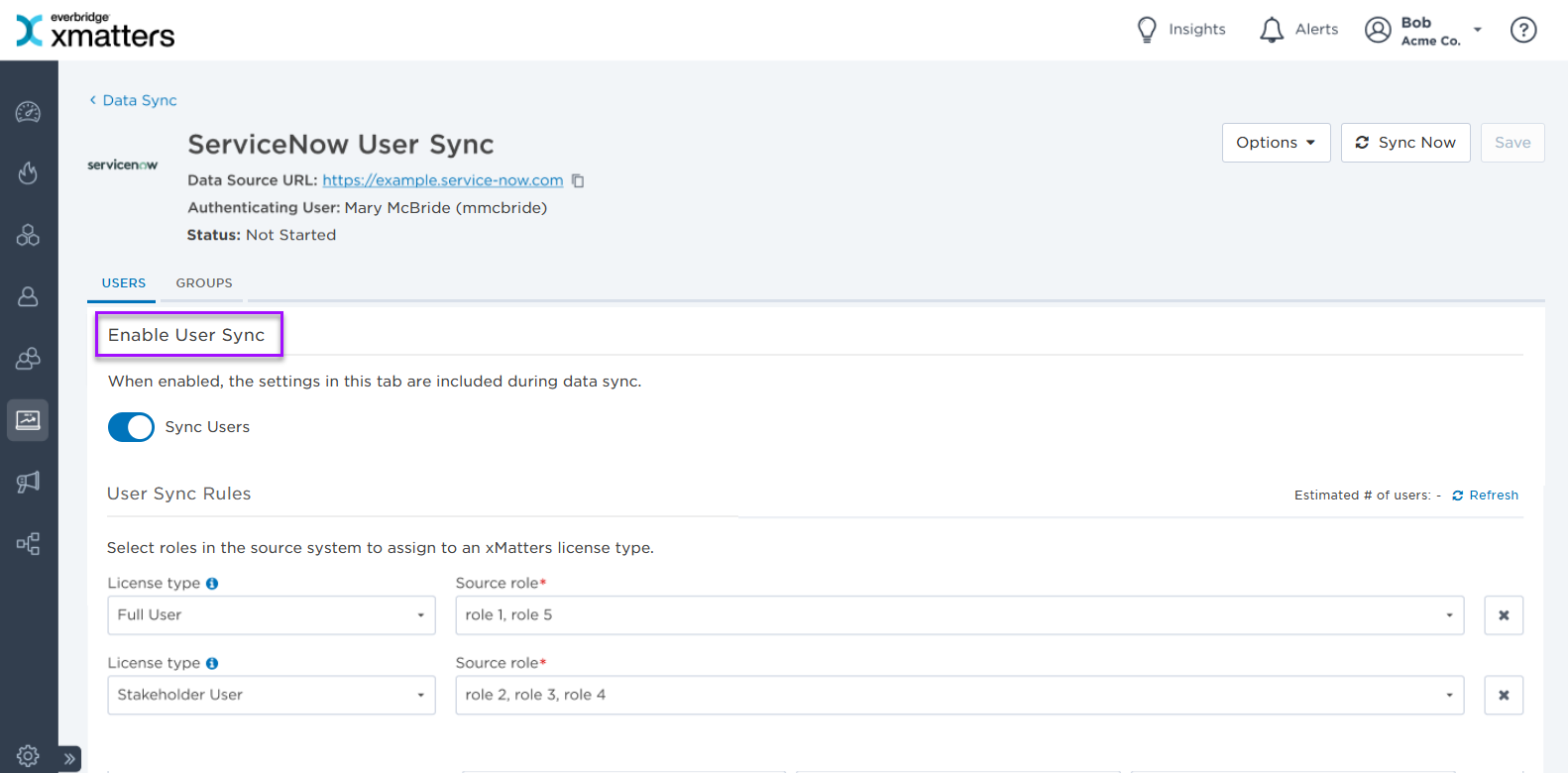
 Enable user sync
For each configuration you can specify whether to sync users, groups, or both, however you must have at least one part of the sync (users or groups) enabled in order to run a sync.
Set user mapping
Once you have created a new sync configuration, you can set which ServiceNow roles you want to map to each license type in xMatters. As you map values, you can see the estimated number of users that will be synchronized between ServiceNow and xMatters. If you make changes to the sync rules, you can 'Refresh' to see the new the number of users.
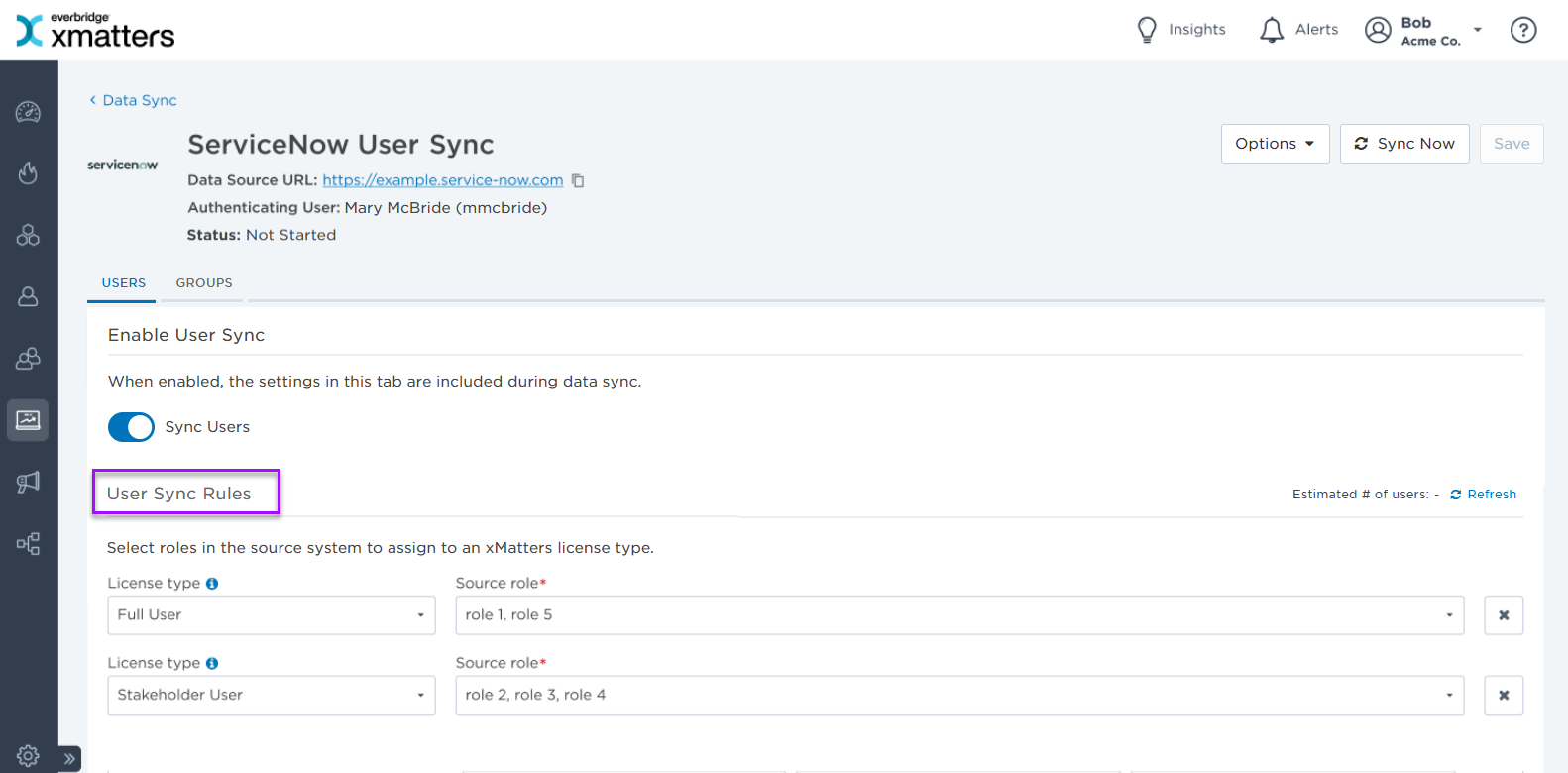
To add roles to a license type;
- In the User Sync Rules section, expand the License Type drop-down menu and select the license type. Available options are:
- Full User
- Stakeholder User
- Expand the Source Role drop-down menu and select the ServiceNow roles to map to the license type.
- An xMatters license type can contain multiple ServiceNow roles, but a role can only be mapped to one license type. If a user matches criteria for both license types, the Full User license type takes precedence.
Now that the license types are mapped, you can map the user properties.
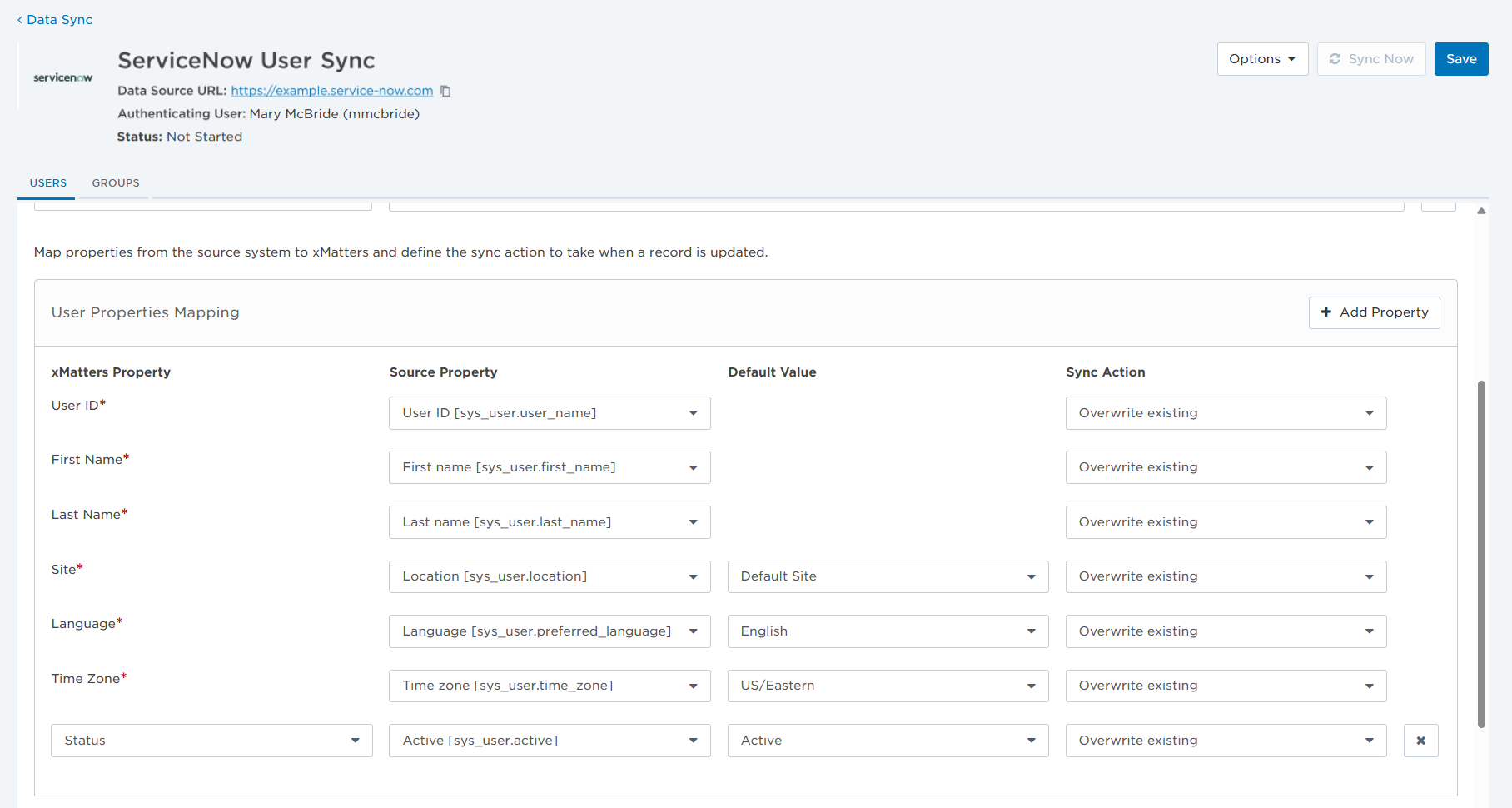
- In the User Properties Mapping table, map source properties from ServiceNow to their corresponding xMatters properties.
- xMatters Property: Name of the property in xMatters.
- Source Property: Name of the property in ServiceNow. If the property has a default value, you can use that by selecting 'Use Default Value' from the drop-down menu.
- Default Value: The default value for the property, if there is one.
- Sync Action: What action to take for each property when a subsequent sync is run. During the initial sync the Sync Action setting is ignored. Available values are:
- Overwrite existing: Overwrite the existing property in xMatters with the property value from ServiceNow.
- Update if empty: Only update the field in xMatters if it was previously empty.
- Ignore (skip): Make no changes in xMatters.
- To map properties other than the listed default properties, click Add Property.
- Save the sync, or continue to the next configuration section.
Set device mapping
To include devices in the data sync:
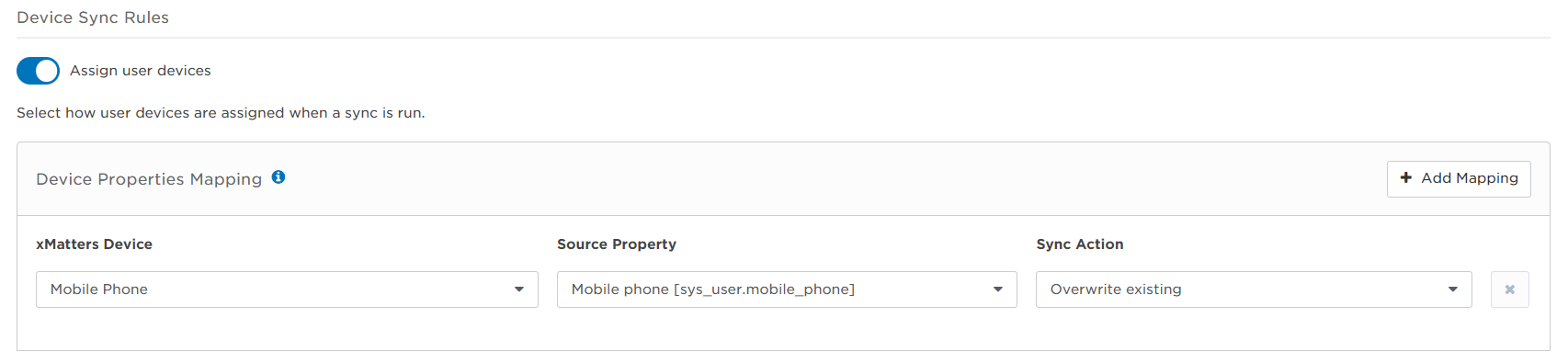
- Go to the Device Sync Rules section and enable the 'Assign user devices' toggle.
- Select what should happen during the sync if the device is empty or invalid in the source system. Available options are:
- Leave the listed device in xMatters as is.
- Delete the device listed in xMatters.
- Deactivate the device listed in xMatters
- In the Device Properties Mapping table, map source properties from ServiceNow to their corresponding xMatters properties.
- xMatters Device: Select the xMatters device type from the drop-down menu.
- Source Property: Select the ServiceNow property from the drop-down menu.
- Sync Action: What action to take for each property when a subsequent sync is run. During the initial sync the Sync Action setting is ignored. Available values are:
- Overwrite existing: Overwrite the existing property in xMatters with the property value from ServiceNow.
- Ignore (skip): Make no changes in xMatters.
- To map additional device types, click Add Mapping.
- Save the sync, or continue to the next configuration section.
Set user roles
Each user in xMatters must have at least one role assigned to their profile. The default role is 'Standard User', but you can select multiple values by either typing the role names, selecting them from the Default Role drop-down list, or mapping values in the Role Mapping table.
- Go to the User Roles Rules section.
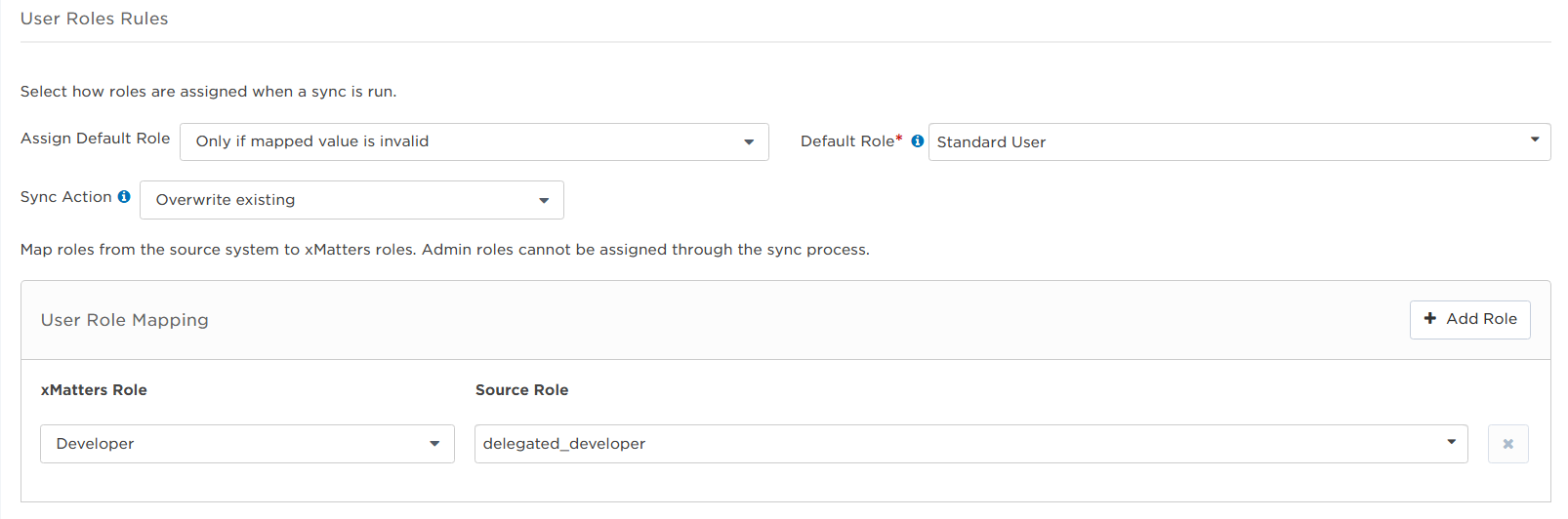
- From the Assign Default Role drop-down, set how roles are assigned when the sync is run. Available options are:
- Only assign default roles: Apply only the roles listed in the Default Role field.
- In addition to mapped values: Apply the default roles listed as well as the mapped values.
- Only if mapped value is invalid: Apply the default roles only if the mapped value provided is invalid.
- Sync Action (if available): What action to take for each property when a subsequent sync is run. During the initial sync the Sync Action setting is ignored. Available values are:
- Overwrite existing: Overwrite the existing property in xMatters with the property value from ServiceNow.
- Ignore (skip): Make no changes in xMatters.
- In the User Role Mapping table, map roles from ServiceNow to their corresponding xMatters Roles.
- xMatters Role: Select the xMatters role from the drop-down menu.
- Source Property: Select the ServiceNow role from the drop-down menu.
- To map additional roles, click Add Role.
- Save the sync, or continue to the next configuration section.
Set supervisors
Supervisors are added when a user record is created during the initial sync with xMatters. You can assign one or more supervisors for each user. To include supervisors as part of the data sync:
- Go to the Supervisor Sync Rules section and enable the 'Assign user supervisors' toggle.
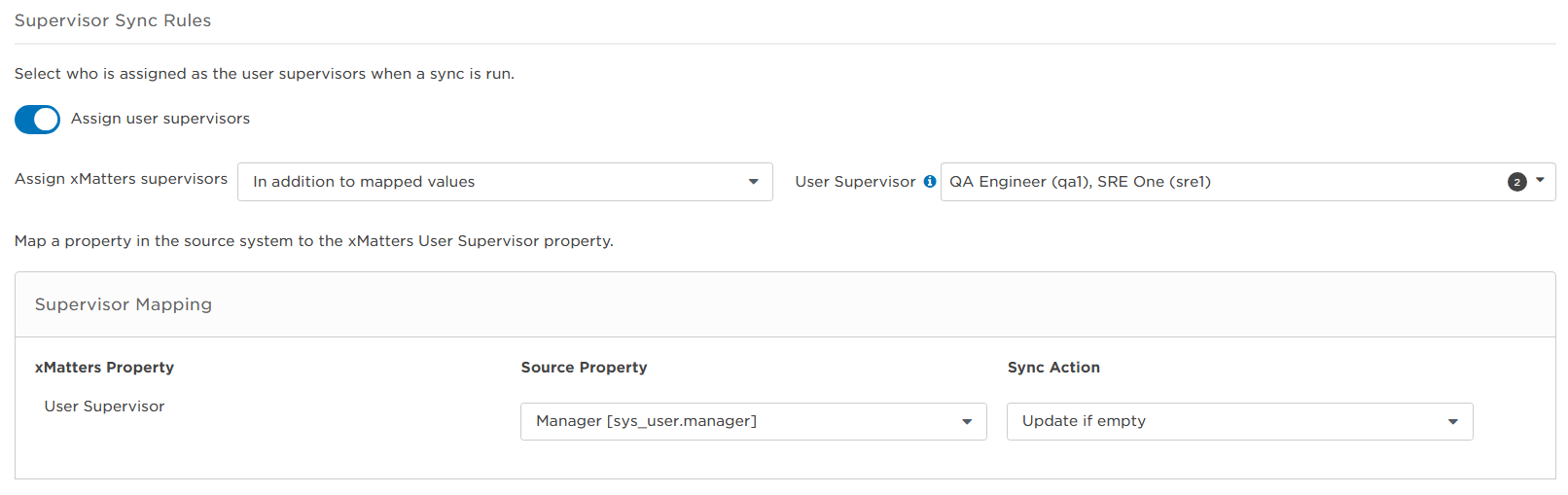
- From the Assign xMatters supervisors drop-down, set how supervisors are assigned when the sync is run. Available options are:
- In addition to mapped values: Apply the default roles listed as well as the mapped values.
- Only if mapped value is invalid: Apply the default roles only if the mapped value provided is invalid.
- Assign only xMatters supervisors: Apply only the supervisors listed in the User Supervisor field.
- In the User Supervisor field, search for supervisor names by typing at least two letters, or select one or more supervisors from the drop-down list.
- Only people who have permission to supervise users are displayed in the list.
- In the Supervisor Mapping table, map source properties from ServiceNow to the xMatters User Supervisor role.
- xMatters property: Set as the User Supervisor.
- Source Property: Select the ServiceNow source from the drop-down menu.
- Sync Action: What action to take for each property when a subsequent sync is run. During the initial sync the Sync Action setting is ignored. Available values are:
- Overwrite existing: Overwrite the existing property in xMatters with the property value from ServiceNow.
- Update if empty: Only update the field in xMatters if it was previously empty.
- Ignore (skip): Make no changes in xMatters.
- Save the sync, or continue to the next configuration section.
Run data sync
After a configuration is saved, click Sync Now to run the data sync.
Only one sync can be run at a time for each configuration and it can take several minutes for a sync to connect, then to complete. Once you click 'Sync Now', do not navigate away from the page, or click the 'Sync Now' button again.
When the sync is finished, you can click the Status link to view a summary report.
Schedule data sync
You can schedule syncs to run daily, weekly, or monthly to bring data in on a predictable schedule. The sync will run as close to the scheduled time as possible, but will not automatically adjust for Daylight Savings Time changes.
Data syncs cannot be scheduled if the configuration contains errors.
To schedule a sync:
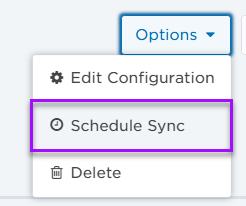
- From the Options menu, select Schedule Sync.
- On the Schedule Sync modal:
- Enable the 'Schedule Sync' toggle.
- Set the frequency and time.
- Set the Time Zone. The time zone of the authenticating user is used by default.
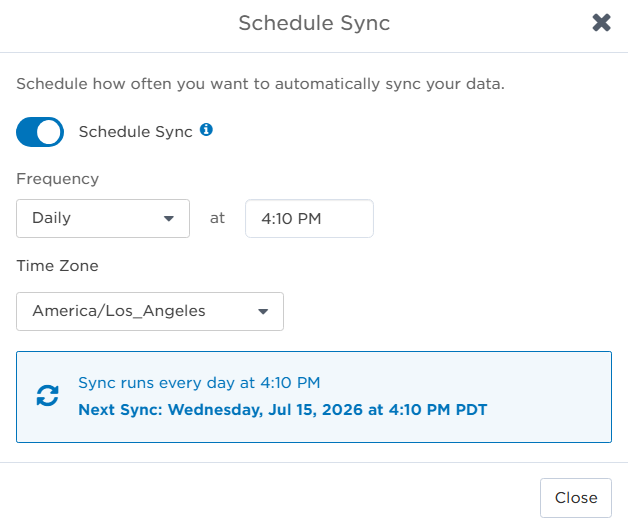
- Confirm the sync is accurately set using the blue info box, then click Close.
Once set, a reminder is displayed on the main sync configuration page.
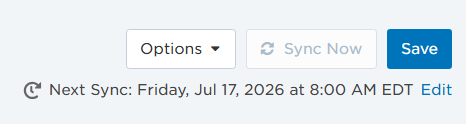
To disable a scheduled sync, click 'Edit' and disable the Schedule Sync toggle.
Edit configuration settings
You can make changes to an existing configuration if required. It is important to note that when configuration settings change, there may be mapping errors that require correction.
To edit the sync configuration:
- Go to the Options menu and select Edit Configuration.

- On the Edit Sync Configurations window, make the required changes.
- Click Save.
Once applied, any properties not compatible with the new configuration settings will be highlighted. To run a sync using the new configuration you must clear all mapping errors and save the configuration.
Delete configuration
If a sync configuration is no longer required, you can delete it to ensure it's not accidentally run. Deleting a sync removes the connection between xMatters and ServiceNow, but it does not delete any data brought into xMatters from previously run syncs.
To delete the sync configuration:
- Go to the Options menu and select Delete.

- Confirm the deletion.
The sync is deleted from the Sync Configurations page.