BMC Control-M
Flow Designer has a BMC Control-M Job Status trigger and built-in BMC Control-M steps to help you integrate Control-M into your alert management and incident response flows.
BMC Control-M Steps
The following steps are available:
- Get Job Log step: get the log for a specific Control-M job.
- Hold Job step: pause a Control-M job that is currently running.
- Rerun Job step: rerun a specific Control-M job.
- Stop Job step: stop a specific Control-M job, at any point in its process.
 Adding BMC Control-M steps to your flow
To add a BMC Control-M step to your flow:
- Go to the Apps tab of the palette, expand the BMC Control-M section, and drag the step you want onto the canvas.
- For instructions on using the BMC Control-M trigger, see BMC Control-M Job Status trigger.
- Connect the step to the previous step in the flow. This gives you access to the alert properties and outputs of previous steps when you configure this step's inputs.
- Double-click the step to edit it, and use the Setup tab to configure the inputs. You can use plain text and input variables (or both). See the following section for detailed information on the inputs, including which are required.
- On the Endpoint tab, configure the step to point to your BMC Control-M instance.
- You can select a pre-existing endpoint or configure a new endpoint.
Get Job Log step
Use the Get Job Log step to get the log for a specific job.
Get Job Log inputs and outputs
Inputs
Inputs with an asterisk* are required.
|
Name |
Description |
|---|---|
| Job ID | Unique ID of the job in BMC Control-M. |
Outputs
These outputs are available as inputs to steps further along the flow.
|
Name |
Description |
|---|---|
| Log | Log for the specified job. Results over 20,000 characters are truncated. |
| Result | Result returned by BMC Control-M. Available options are: Success, Failure. |
Hold Job step
Use the Hold Job step to hold (or pause) a job currently running in BMC Control-M.
Hold Job inputs and outputs
Inputs
Inputs with an asterisk* are required.
|
Name |
Description |
|---|---|
| Job ID | Unique ID of the job in BMC Control-M. |
Outputs
These outputs are available as inputs to steps further along the flow.
|
Name |
Description |
|---|---|
| Message | Message that describes the performed action. |
| Result | Result returned by BMC Control-M. Available options are: Success, Failure. |
Rerun Job step
Use the Rerun Job step to rerun a specific BMC Control-M job.
Rerun Job inputs and outputs
Inputs
Inputs with an asterisk* are required.
|
Name |
Description |
|---|---|
| Job ID | Unique ID of the job in BMC Control-M. |
Outputs
This output is available as inputs to steps further along the flow.
|
Name |
Description |
|---|---|
| Result | Result returned by BMC Control-M. Available options are: Success, Failure. |
Stop Job step
Use the Stop Job step to stop a specific job that's currently running in BMC Control-M.
Stop Job inputs and outputs
Inputs
Inputs with an asterisk* are required.
|
Name |
Description |
|---|---|
| Job ID | Unique ID of the job in BMC Control-M. |
Outputs
These outputs are available as inputs to steps further along the flow.
|
Name |
Description |
|---|---|
| Message | Message that describes the performed action. |
| Result | Result returned by BMC Control-M. Available options are: Success, Failure. |
BMC Control-M Job Status trigger
The built-in BMC Control-M Job Status trigger initiates a flow when it receives a signal from the xMatters BMC Control-M plugin, either before or after a parent job executes. Outputs include information about the parent job.
Add the BMC Control-M Job Status trigger to the canvas
- Go to the Triggers tab in the palette, expand the App Triggers section and drag the trigger onto the canvas.
- Double-click the trigger (or click the pencil icon).
- Set the authenticating user. Alternatively, you can create an integration user to use as the authenticating user.
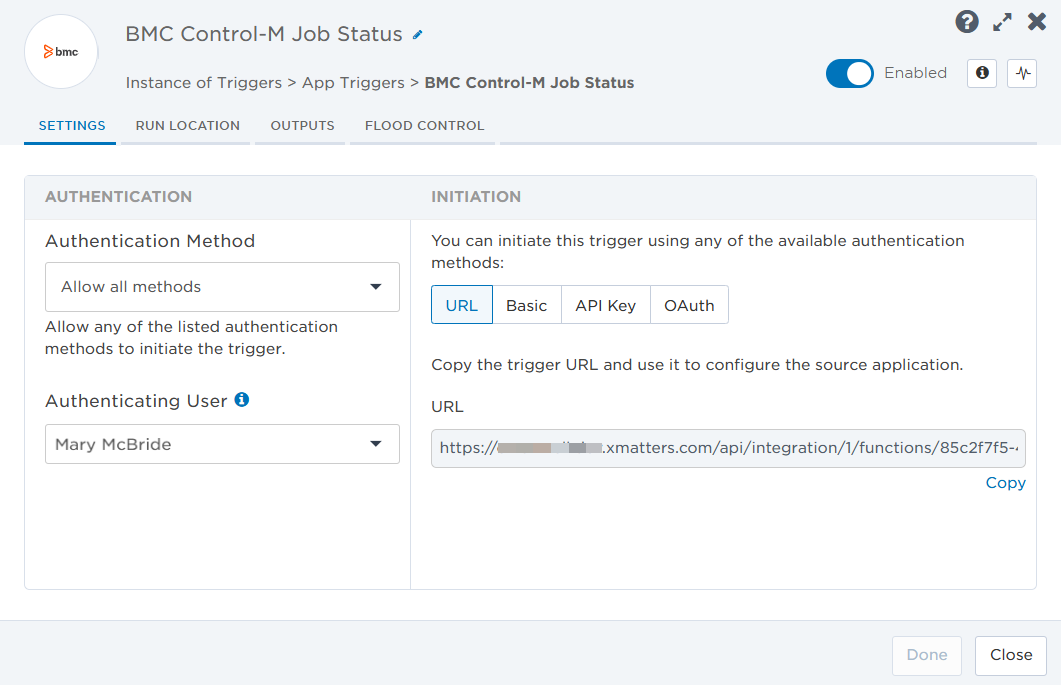
- Copy the URL — you'll use this when you create the connection profile.
- Click the Flood Control tab to edit the trigger's default flood control settings. For more information about these settings, see Trigger Flood Control.
- Click Done.
- On the flow canvas, connect the steps you want to run when xMatters receives a request to that URL.
You're now ready to configure BMC Control-M to target the trigger.
Configure BMC Control-M to send requests to the Trigger URL
The following instructions describe how to create an API token, configure a BMC Control-M connection profile, and use the xMatters plug-in to connect BMC Control-M with xMatters.
Create a Control-M API token
To create the API token in Control-M:
- Go to the Configuration menu and select API Tokens.
- Create a token with the appropriate permissions to access the required run service actions.
- Copy the token value to a secure location. You'll use the token when you configure the connection profile.
Import and configure the plug-in
- Download the xMatters_plugin.ctmai plug-in file.
- In Control-M, open the Application Integrator.
- Click Add Plug-in > Import from File, then navigate to the location of your saved xMatters_plugin.ctmai file.
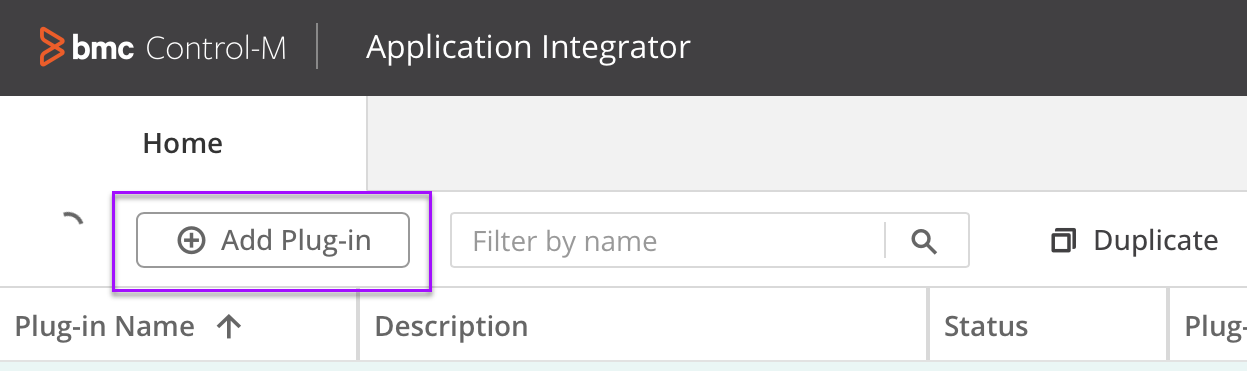
- When the file appears in your list of plug-ins, open it to review the attributes.
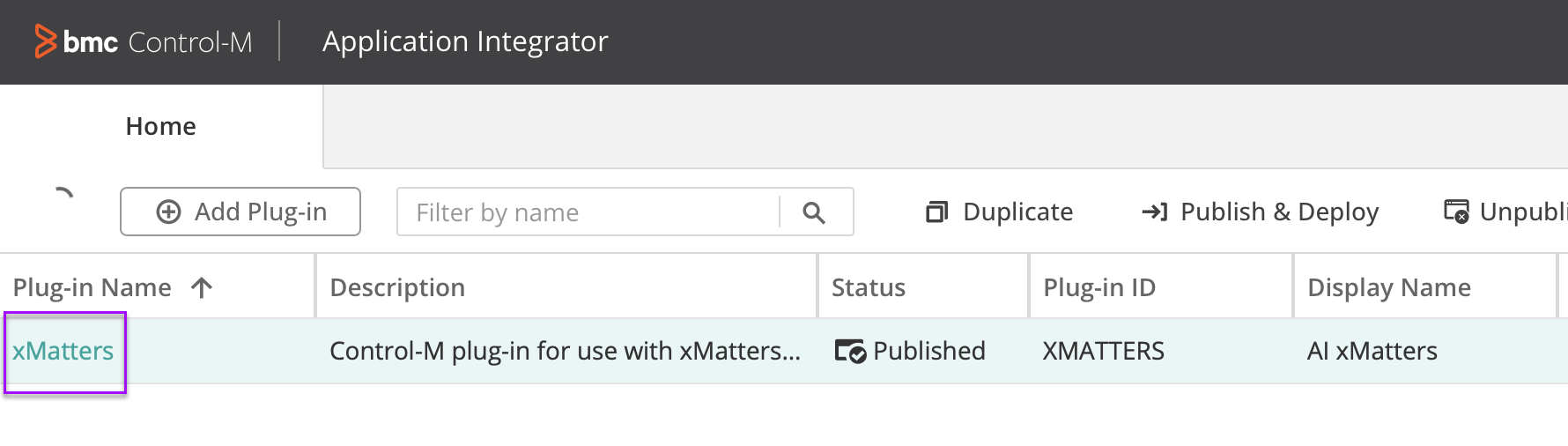
- Go to Attribute Management > Connection Profile Attributes, and ensure plug-in includes the following fields.
- triggerURL
- Username
- Password
- ctmHost
- ctmServerName
- ctmApiToken
- Select the ctmApiToken attribute and set the Default Field State to Visible.
- Save your changes.
Create the connection profile
The connection profile contains information on the authenticating user, as well as the trigger URL that connects Control-M to xMatters.
- In Control-M, go to Configuration > Centralized Connection Profiles
- Click Add Centralized Connection Profile > AI xMatters and fill in the following fields:
- Connection Profile Name: xMatters
- triggerURL: Paste the trigger URL you copied from xMatters.
- Username = Name of the authenticating user in xMatters.
- Password = Password of the authenticating user in xMatters.
- cmtHost = https://<your-bmc-instance>-aapi.us3.controlm.com/automation-api
- cmtServerName = The name of your server.
- ctmApiToken = Your Control-M API token.
- Click Add.
The connection profile is stored and ready for use.
Publish and Deploy the plug-in
- Go to the Application Integrator and open the xMatters plug-in.
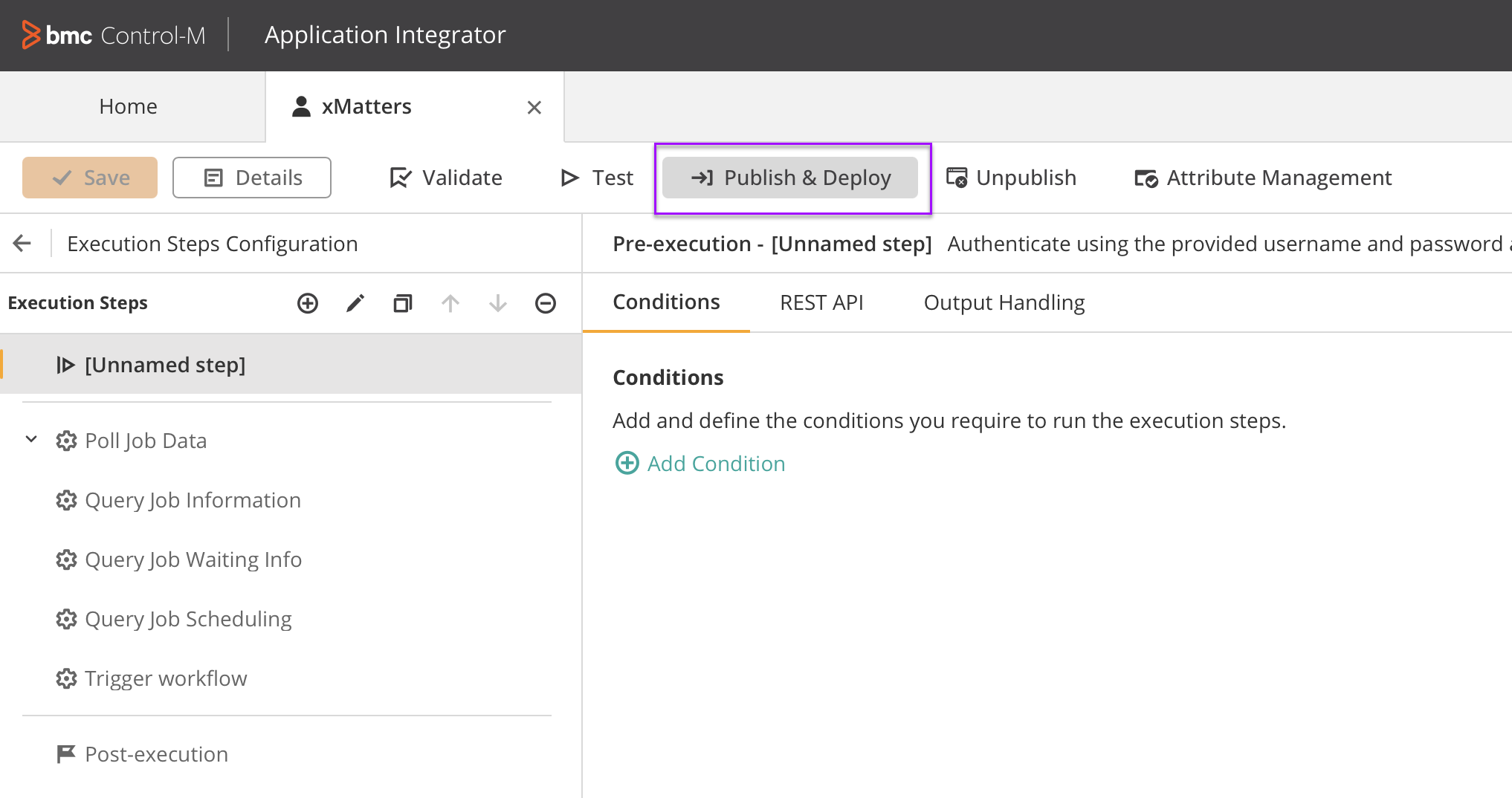
- On the Publish & Deploy panel, select which agent to deploy the plug-in to. You can deploy the plug-in to multiple agents, if required.
- Click Apply.
When the deployment process completes the plug-in is ready to use, though we always recommend testing before putting things into use.
Outputs
BMC Control-M Job status trigger outputs
The BMC Control-M Job status trigger has the following outputs you can use as inputs to steps further along the flow.
|
Label |
Description |
|---|---|
| Application | User-defined application of the job. |
| Cyclic | Whether the job executes at defined cyclic intervals. |
| Description | Description of the job. |
| End Time | Timestamp of when the job run finished in BMC Control-M. |
| Estimated End Time | Estimated time when the job is expected to finish running. |
| Estimated Start Time | Estimated time when the job is expected to begin running. |
| Execution Time Zone | Time zone where the job was executed. |
| Job Type | Type of job. |
| Number of Runs | Number of times the job has run. |
| Parent Folder | Folder in BMC Control-M where the job resides. |
| Ran As | Username of the user that is authorized to execute the job. |
| Rerun Every | Amount of time to wait between job reruns or cyclic executions. |
| Run Date | Date that the job ran. |
| Run ID | Unique ID of the BMC Control-M job run. |
| Run Where | Agent host ID and host group where the job executes. |
| Start Time | Timestamp of when the job run began in BMC Control-M. |
| Status | Status of the job in BMC Control-M. |
| Sub Application | User-defined sub-application of the job. |
| Submission Window | A specified period of time when the job can execute. |
| Waiting Info | Reasons why the job did not run. |