Conference Bridge steps
Create xMatters Conference step
The Create xMatters Conference step allows you to initiate an xMatters hosted conference bridge in your flow.
 Configure the Create xMatters Conference step
- In the Tools tab, under , drag the Create Conference step onto the canvas and connect it to your flow.
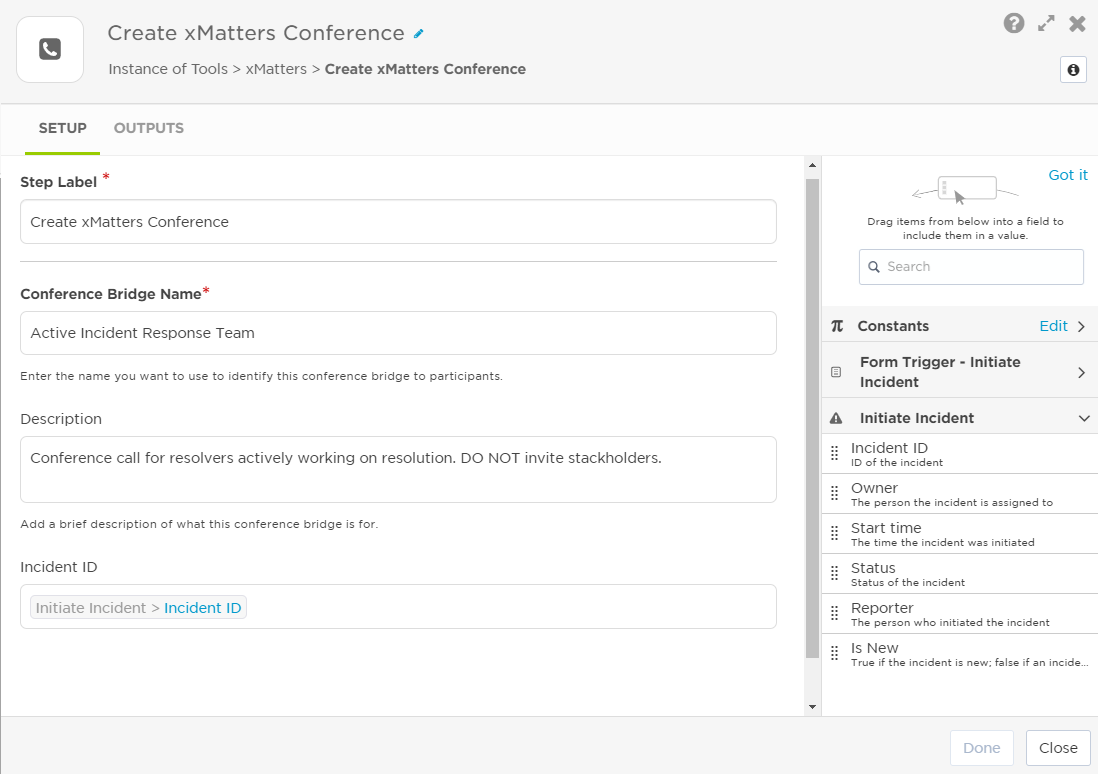
- Double-click the step to open the setup screen (or move your cursor over the step and click the pencil icon).
- Enter a label for the step to identify it in your flow.
- Enter the conference bridge name to identify the conference bridge to participants and in xMatters.
- Add an optional description.
- The incident ID associates the step to an incident as one of the collaboration channels. If you have the Initiate Incident step in your flow, you can add the Incident ID variable. To do this, click the Initiate Incident tab and drag the Incident ID variable under the Incident ID section.
- Once you're happy with the settings, click Done.
- Click Save on the canvas.
Create xMatters Conference step outputs
| Property | Description |
|---|---|
| Toll-Free Number | The HTTP response code received from the target system. |
| Toll Number | The toll number that can be used to dial in to the conference. |
| Bridge ID | The conference bridge's unique identifier, or bridge number. Participants are prompted for this number when they dial in to the conference. |
For more detailed information about monitoring xMatters conference bridges, see Conferences report.
Get Conference Bridge
The Get Conference Bridge step allows you to get the details of an xMatters or externally hosted conference bridge and add the details to steps further along in your flow.
Configure the Get Conference Bridge step
- In the Tools tab, under xMatters, drag the Get Conference Bridge step onto the canvas and connect it to your flow.
- Double-click the step to open the setup screen (or move your cursor over the step and click the pencil icon).
- Enter a the name of an existing externally hosted bridge, or the Bridge ID of an existing xMatters conference bridge..
- Click Save on the canvas.
Get Conference Bridge step inputs and outputs
Inputs
| Property | Description |
|---|---|
| Name or Bridge ID | Unique name of an externally-hosted conference bridge, or the Bridge ID of an existing xMatters-hosted conference bridge. |
Outputs
| Property | Description |
|---|---|
| Bridge ID | A number that identifies the conference. Users are typically prompted for this number after they connect to a conference provider. |
| Conference ID | Unique identifier of the conference bridge in your xMatters system. |
| Description | Description of the conference bridge. |
| Meeting URL | For externally-hosted bridges, a direct URL users can click to join the bridge from an email, push notification, or text message. |
| Name | Name of the conference bridge. |
| Status |
Status of the conference bridge. Available values for xMatters-hosted conference bridges are:
|
| Toll Number | The toll number that can be used to join the conference. |
| Toll-Free Number | Toll-free number can be used to join the conference. |
| Type |
Type of conference bridge. Available options are:
|