Jira Events
The built-in Jira Events triggers for Comments/Work Log and Work Items initiate flows when they receive a signal from a Jira Events webhook.
Add the Jira Events trigger to the canvas
- Go to the Triggers panel in the palette, expand the App Triggers section and drag the trigger onto the canvas.
- Double-click the trigger (or click the pencil icon).
- Set the authenticating user, and then copy the URL — you'll use this to set up the webhook in Jira. Alternatively, you can create an integration user to use as the authenticating user.
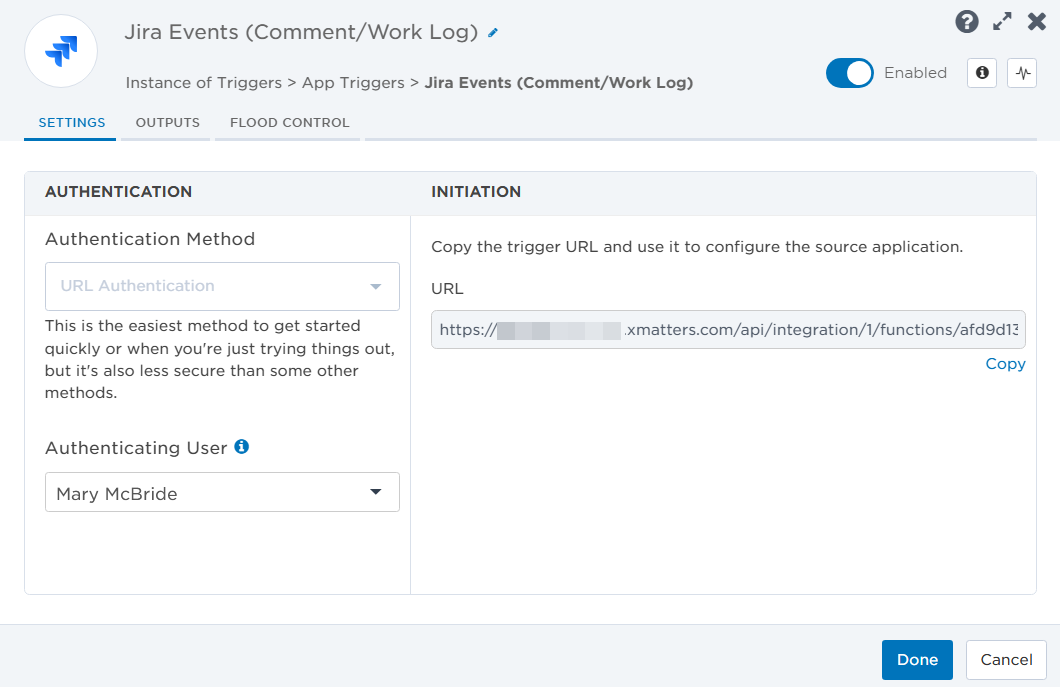
- Click the Flood Control tab to edit the trigger's default flood control settings. For more information about these settings, see Trigger Flood Control.
- Click Done.
- On the flow canvas, connect the steps you want to run when xMatters receives a request to that URL.
You're now ready to configure Jira to target the trigger.
Configure Jira to send requests to the trigger URL
To have Jira send alerts to the flow trigger, you need to configure a webhook and set it to use the trigger URL. If you plan to use both the Comment/Work Log trigger and the Work Item trigger you'll need to configure a webhook for each trigger.
 Configure the webhook
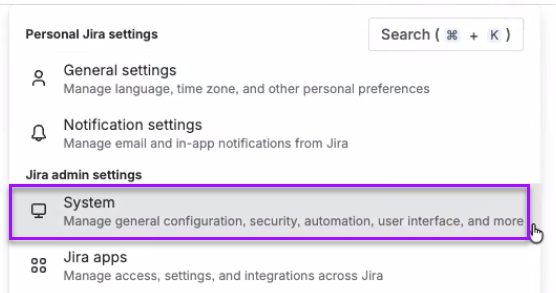
- In Jira, go to Settings > Jira admin settings and select System.
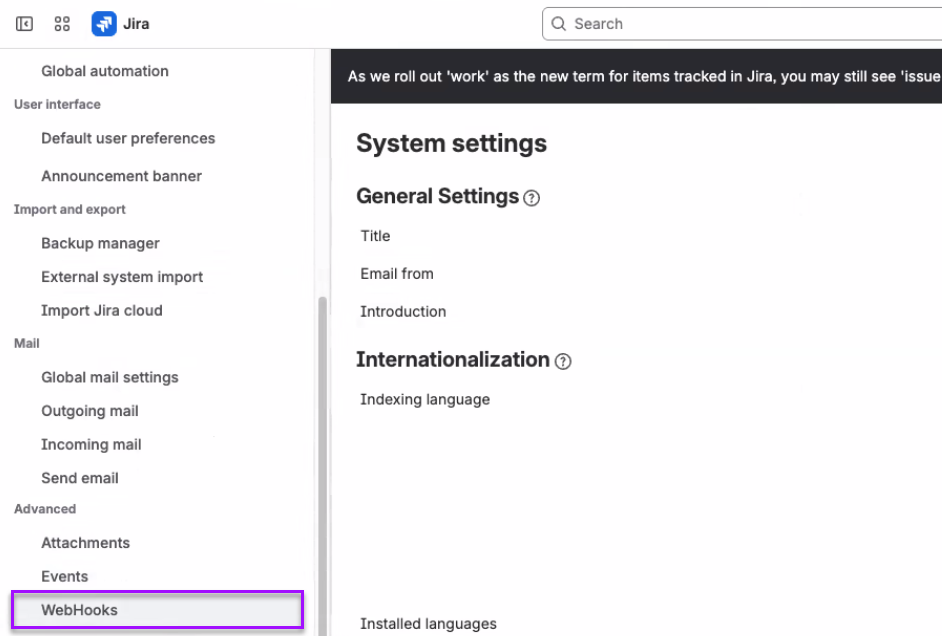
- In the System menu, go to Advanced > WebHooks window opens.
- From the top-right corner of the Webhooks page, click Create a WebHook.
On the Create a WebHook page, fill in the following fields:
- Name : Give the webhook a unique name. For example:
- xMatters Comments or xMatters Work Log for the Comment/Work Log trigger.
- xMatters Work Item for the Work Item trigger.
-
URL: Paste the trigger URL you copied from the Flow Designer trigger.
- Add the target names of any recipients you want to notify when the alert fires to the end of the URL.
- For URL authentication, use an ampersand to attach recipients. For example, if you want to notify Emma Pearson and the on-call members in the group responsible for the Antares service, you'd add &recipients=epearson,antares to the URL.
- You must URL-encode any special characters or spaces in the target names.
- Optional: To limit the signals sent to xMatters, you can add a query to the Issue Related Events field.
- Ensure the appropriate Issue, Worklog, and Comment check boxes are selected for the trigger.
- For the Jira Events Comment/Work Log trigger, ensure the 'created', 'updated', and 'deleted' check boxes are selected for both Worklog and Comment.
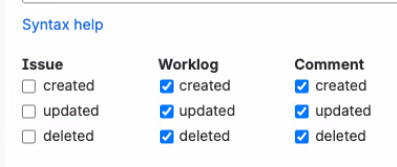
- For the Jira Events Work Item trigger, ensure the Issues check boxes for 'created', 'updated', and 'deleted' are selected.
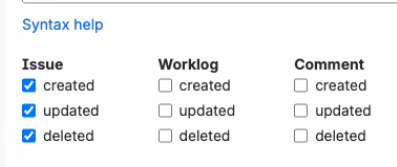
- For the Jira Events Comment/Work Log trigger, ensure the 'created', 'updated', and 'deleted' check boxes are selected for both Worklog and Comment.
- Save the webhook.
You're ready to use the webhook to trigger automated flows, including steps such as sending alerts and initiating incidents, though we always recommend testing before putting things into use.
Outputs
Jira Events (Comment/Work Log) outputs
The following outputs are available as inputs to steps further along the flow.
|
Label |
Description |
|---|---|
|
Author (ID) {comment.author.displayName} or {worklog.author.displayName} |
Unique ID of the user that created the comment or work log. |
|
Author (Name) {comment.author.accountID} or {worklog.author.accountID} |
Name of the user that created the comment or work log. |
|
Comment {comment.body} or {worklog.comment} |
Content of the Jira comment. |
| Comment URL | Direct URL to the Jira comment. |
|
Comment/Work Log ID {comment.id} or {worklog.id} |
Unique ID of the Jira comment or work log. |
|
Created Date Time {comment.created} or {worklog.created} |
Timestamp of when the comment or work log was created in Jira, in ISO format. |
|
Last Updated Date Time {comment.updated} or {worklog.updated} |
Timestamp of when the comment or work log was last updated in Jira, in ISO format. |
|
Time Spent {worklog.timeSpent} |
Time spent on the work item. (Work log only.) |
|
Time Spent in Seconds {worklog.timeSpentSeconds} |
Time spent on the work item, in seconds. (Work log only.) |
|
Updated By (ID) {comment.updateAuthor.accountId} or {worklog.updateAuthor.accountId} |
Unique ID of the user that updated the comment or work log. |
|
Updated By (Name) {comment.updateAuthor.displayName} or {worklog.updateAuthor.displayName} |
Name of the user that updated the comment or work log. |
|
Webhook Event Type {webhookEvent} |
Type of Jira webhook event. |
|
Work Item ID {issue.id} or {worklog.issueId} |
Unique ID of the Jira work item associated with the comment or work log. |
|
Work Item Key {issue.key} |
Unique Jira identifier of the work item (e.g., ABC-123) associated with the comment. |
|
Work Started {worklog.started} |
Timestamp of when work started on the work item, in ISO format. (Work log only.) |
Jira Events (Work Item) outputs
The following outputs are available as inputs to steps further along the flow.
|
Label |
Description |
|---|---|
|
Updated By (ID) user.accountId |
Unique ID of the user that updated the work item. |
|
Updated By (Name) user.displayName |
Display name of the user that updated the work item. |
|
Updated Fields changelog.items[].field |
Comma-separated list of fields that were updated. |
|
Webhook Event Type webhookEvent |
Type of Jira webhook event. |
|
Work Item Event issue_event_type_name |
Work item event that triggered the webhook. |
|
Work Item ID issue.id |
Unique ID of the Jira work item. |
|
Work Item URL |
Direct link to the Jira work item. |