Synchronization report details
There are several layers to the synchronization report. You can view a summary of the synchronization process or drill down to view the specific details about each job, including the errors that have occurred.
To view the synchronization timeline:
- From the side navigation menu, go to Reports > Synchronization Report.
- Click the Job Completed Successfully or Job Completed With Errors link.
- If the job did not complete, you cannot view the synchronization report summary.
The Sync Timeline opens and displays specific information about the synchronization job broken down into three columns:
- Status: The name of each part of the job as it runs. See Job Status for a description of each status type.
- Time: The date and time a particular job status started or completed.
- Message: Additional information from each step of the job status.
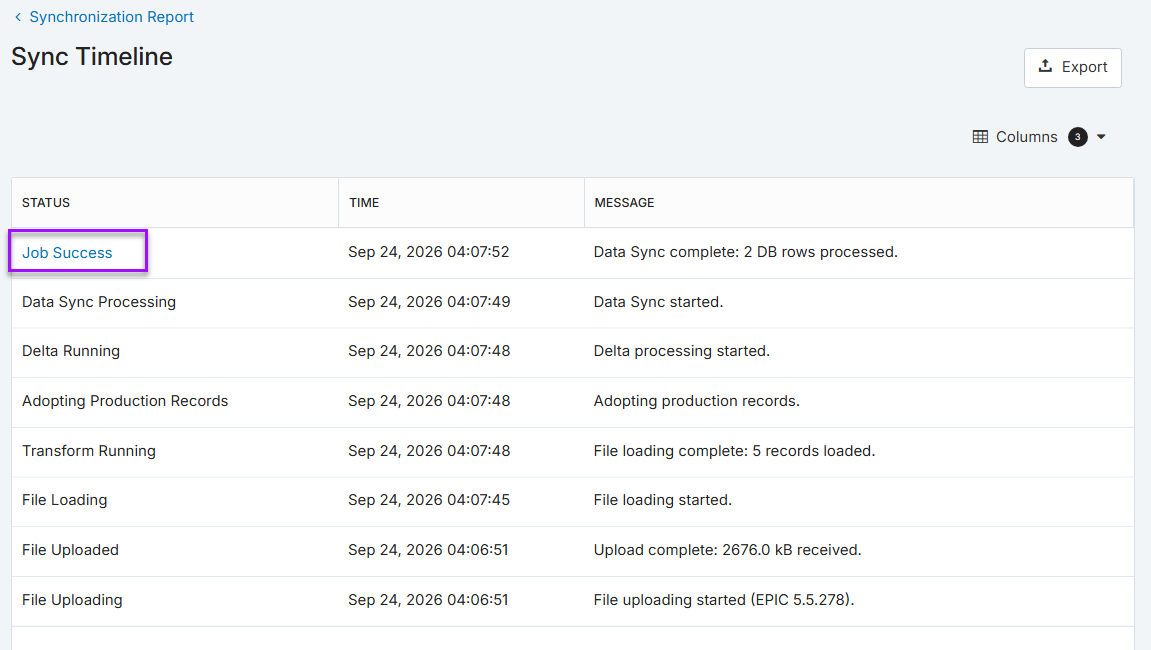
You can drill in even further to see which database rows were updated or errors encountered by clicking the job status link in the Status column. This brings you to the Synced Tables page that gives additional details of the synchronization process. To view additional information on for a specific synchronizer, click
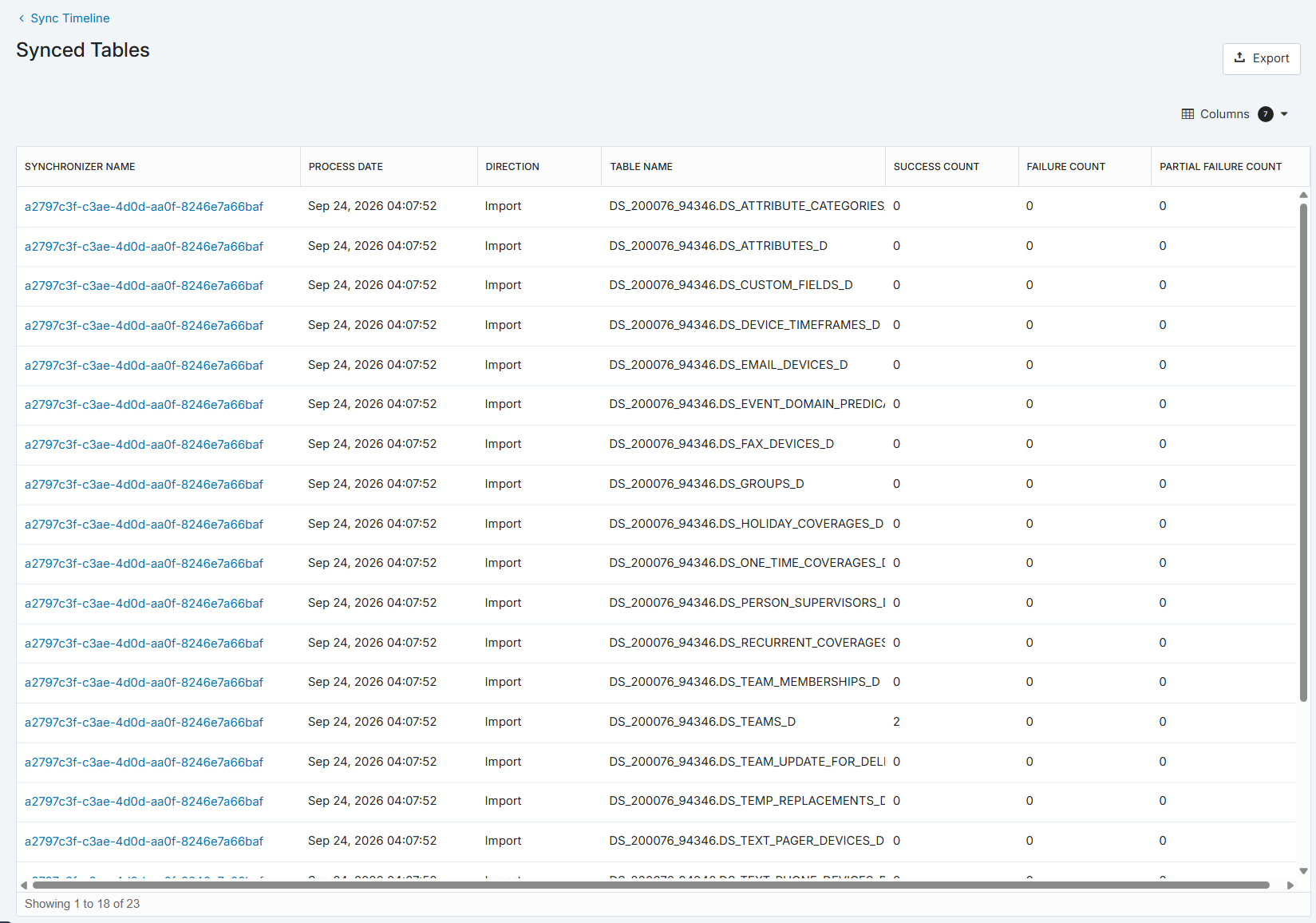
The following table describes the columns of the synchronized tables.
| Name | Description |
|---|---|
| Synchronizer Name | A link to the detailed error report for the table. |
| Process Date | The date and time the table was processed. |
| Direction | The direction of the synchronization (Import or Export). |
| Table Name | The table that was synchronized. This identifier includes the table name after the '.' character and before the _D suffix. For example, DS_2432271.DS_USERS_D refers to the DS_USERS table. In ZipSync, this corresponds to the ds_users.csv file. |
| Success Count | The number of records that were successfully processed. |
| Failure Count | The number of records that failed to synchronize with xMatters. Records may fail to synchronize with xMatters when they are missing required fields, use an invalid format, or attempt to add or delete data inappropriately. |
| Partial Failure Count | The number of records that were processed but encountered errors with one or more properties. For example, a partial failure occurs when a list contains several valid values and one invalid value. |
For information on synchronization errors or troubleshooting, see Troubleshoot report errors.
 Export the report
You can export the contents of the Synchronization report as an .xlsx file. This is useful if you'd like to perform additional analysis on the data.
To export the report:
- Filter the report using the search bar, Columns drop-down, or both. All filters applied to the Synchronization report, such as changing column order, or alphabetically sorting a column, are preserved in the exported file.
- Click Export to download a spreadsheet containing your report data.