Freshservice
Flow Designer has a Freshservice Alerts trigger and built-in Freshservice steps to help you integrate Freshservice into your event management and incident response flows.
Freshservice Steps
The following steps are available:
- Create Ticket: automatically create a new ticket in Freshservice, populating it with information from the alert or previous steps in the flow.
- Update Ticket: automatically update an existing ticket as information about the alert changes.
- Add Note: automatically add a note to an existing ticket, with new information from other steps in the flow.
 Adding Freshservice steps to your flow
To add a Freshservice step to your flow:
- Go to the Apps in the palette, expand Freshservice, and drag the step you want to add onto the canvas.
- For instructions on using the Freshservice trigger, see Freshservice Alerts trigger.
- Connect the step to the previous step in the flow. This gives you access to the
- Double-click the step to edit it, and use the Setup tab to configure the inputs. You can use plain text and input variables (or both). See the following sections for detailed information on the inputs for each step, including which are required.
- On the Endpoint tab, configure the step to point to your Freshservice instance.
- You can select a pre-existing endpoint or create a new endpoint.
- To configure the new endpoint, enter your Freshservice API Key in the Username field and a password of your choice.
- You can select a pre-existing endpoint or create a new endpoint.
Create Ticket
Use the Create Ticket step to automatically create a new ticket in Freshservice. Map outputs from previous steps to the inputs to complete the incident details.
Create Ticket inputs and outputs
Inputs
Inputs with an asterisk* are required.
|
Label |
Description |
|---|---|
| Assigned Agent | Email address or ID of the Freshservice agent. The agent must belong to the group specified on the ticket. |
| Assigned Group ID | Unique ID of the group to assign to the ticket. |
|
Description |
Description of the ticket, in plain text or HTML format. |
|
Priority |
Priority level of the ticket as set in Freshservice. Use either the number or word, but not both. For example: “2” or “Medium”. |
|
Requester/ Contact |
Email address or requester/contact ID of the ticket creator. This field maps to either the email or requester_id field in Freshservice, based on what's provided. |
| Requester/Contact Name | Name of the ticket creator. |
|
Source |
Source of the ticket in Freshservice represented by a number or word. Standard values use either the number or word. For example, “2” or “Portal”. Custom values must use the number. |
|
Status |
Status of the ticket in Freshservice represented by a number or word. Standard values use either the number or word. For example, “2” or “Open”. Custom values must use the number. |
|
Subject |
Subject of the ticket to a maximum length of 255 characters. Longer values will be truncated. |
|
Tags |
Comma-separated list of Freshservice tags for the ticket. |
|
Type |
Type of ticket as set by Freshservice. For example, “Incident”, “Problem”, or user specified value. |
|
Workspace/Client ID |
Unique ID of the Workspace (Freshservice and Freshservice for Business) or Client (Freshservice for MSPs). If left blank, the primary workspace or the associated contact’s client ID is used. |
Outputs
These outputs are available as inputs to steps further along the flow.
|
Label |
Description |
|---|---|
|
Result |
Result returned by Freshservice. Available options are: Success, Failure. |
|
Ticket ID |
The unique ID of the ticket in Freshservice. |
Update Ticket
Use the Update Ticket step to automatically update the information on an existing ticket. Map outputs of previous steps to the inputs to determine which ticket to update and what details to change. Any inputs excluded from the request retain their current values.
Update Ticket inputs and outputs
Inputs
Inputs with an asterisk* are required.
|
Label |
Description |
|---|---|
|
Assigned Agent |
Email address or ID of the Freshservice agent. The agent must belong to the group specified on the ticket. This field maps to either the email or requester_id field in Freshservice, based on what's provided |
| Assigned Group ID | Unique ID of the group assigned to the ticket. |
|
Description |
Description of the ticket, in plain text or HTML format. |
|
Priority |
Priority level of the ticket as set in Freshservice. Use either the number or word, but not both. For example: “2” or “Medium”. |
|
Status |
Status of the ticket in Freshservice represented by a number or word. Standard values use either the number or word. For example, “2” or “Open”. Custom values must use the number. |
|
Subject |
Subject of the ticket, up to a maximum length of 255 characters. Longer values will be truncated. |
|
Tags |
Comma-separated list of Freshservice tags for the ticket. Ticket tags are not cumulative; all existing tags will be overwritten. |
|
Ticket ID |
Unique ID of the ticket in Freshservice. |
|
Type |
Type of ticket as set by Freshservice. For example, “Incident”, “Problem”, or user specified value. |
Outputs
This output is available as inputs to steps further along the flow.
|
Label |
Description |
|---|---|
|
Result |
Result returned by Freshservice. Available options are: Success, Failure. |
Add Note to ticket
Use the Add Note step to automatically add an internal note to an existing ticket. Map outputs of previous steps to the inputs to create the comment and determine which ticket to comment on.
Add Note inputs and outputs
Inputs
Inputs with an asterisk* are required.
|
Label |
Description |
|---|---|
|
Agents to Notify |
Comma-separated list of email addresses for agents who need to be aware of this note. This field maps to the notify_emails field in Freshservice. |
|
Body |
Content of the note in plain text or HTML format. |
|
Private |
Whether the note is private (true) or public (false). Default value is true. |
|
Ticket ID |
Unique ID of the ticket to add the note to. |
Outputs
These outputs are available as inputs to steps further along the flow.
|
Label |
Description |
|---|---|
|
Note ID |
The unique ID of the note in Freshservice. |
|
Result |
Result returned by Freshservice. Available options are: Success, Failure. |
Freshservice Alerts trigger
Flow Designer includes a built-in Freshservice Alerts trigger that initiates a flow when it receives a signal from a Freshservice automation rule. You can configure a Freshservice target to send the request when your configured conditions are met.
Add the Freshservice Alerts trigger to the canvas and copy the URL
- Go to the Triggers tab in the palette, expand the App Triggers section and drag the trigger onto the canvas.
- Double-click the trigger (or click the pencil icon).
- Set the authenticating user, then copy the URL and Configuration Payload — you'll use these to set up the webhook in Freshservice.
Alternatively, you can create an integration user to use as the authenticating user.
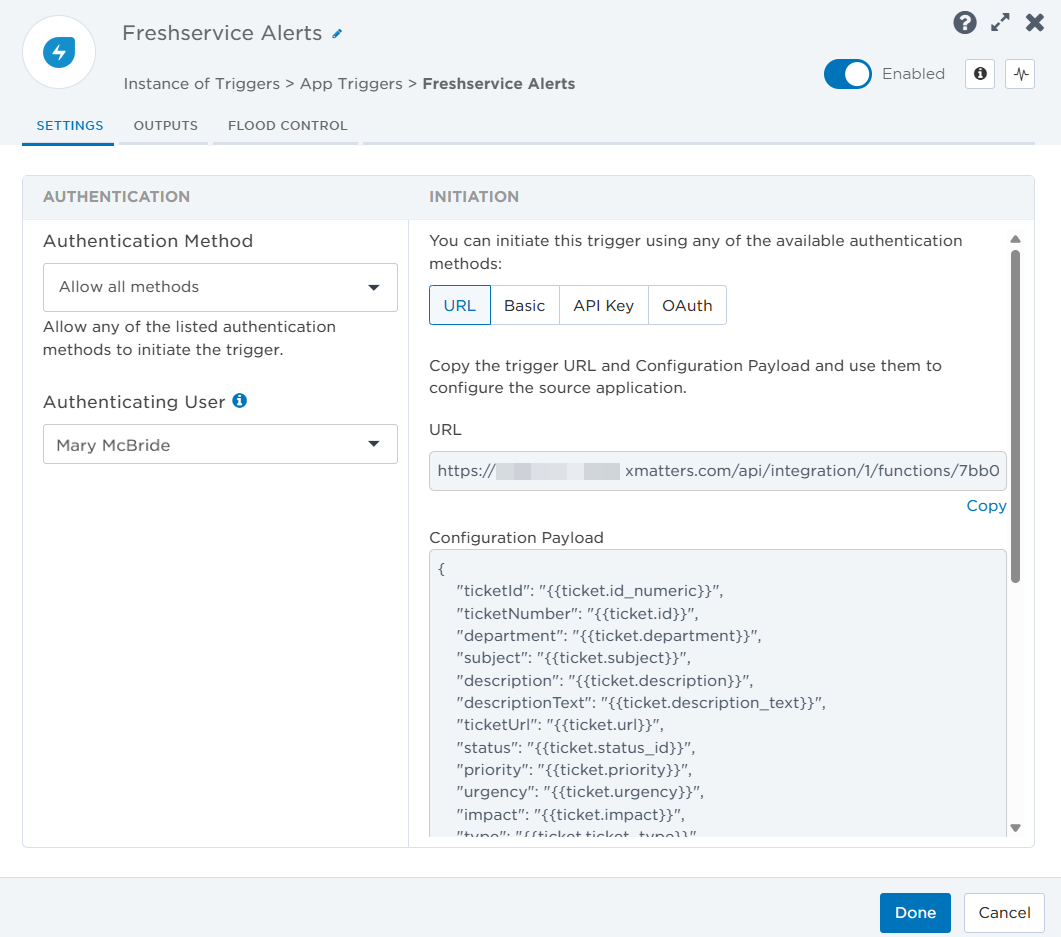
- Click the Flood Control tab to edit the trigger's default flood control settings. For more information about these settings, see Trigger Flood Control.
- Click Done.
- On the flow canvas, connect the steps you want to run when xMatters receives a request to that URL.
You're now ready to configure Freshservice to target the trigger.
Configure Freshservice to send requests to the trigger URL
To have Freshservice send alerts to the flow trigger, you need to configure an automation and set a webhook use the trigger URL.
Create a Freshservice workflow automation and webhook
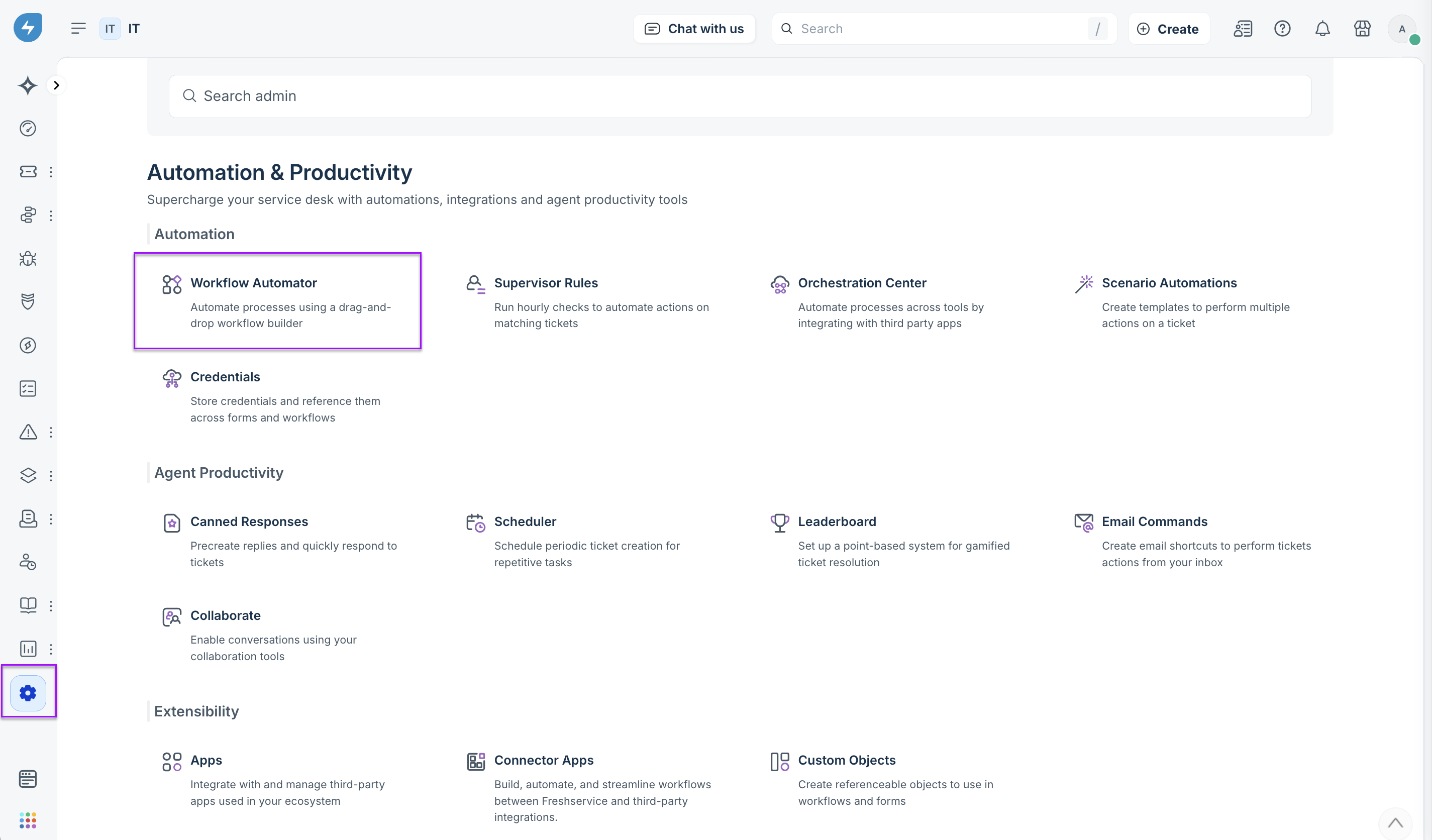
- In Freshservice, go to the Admin menu.
- In the Automation & Productivity section, select Workflow Automator.
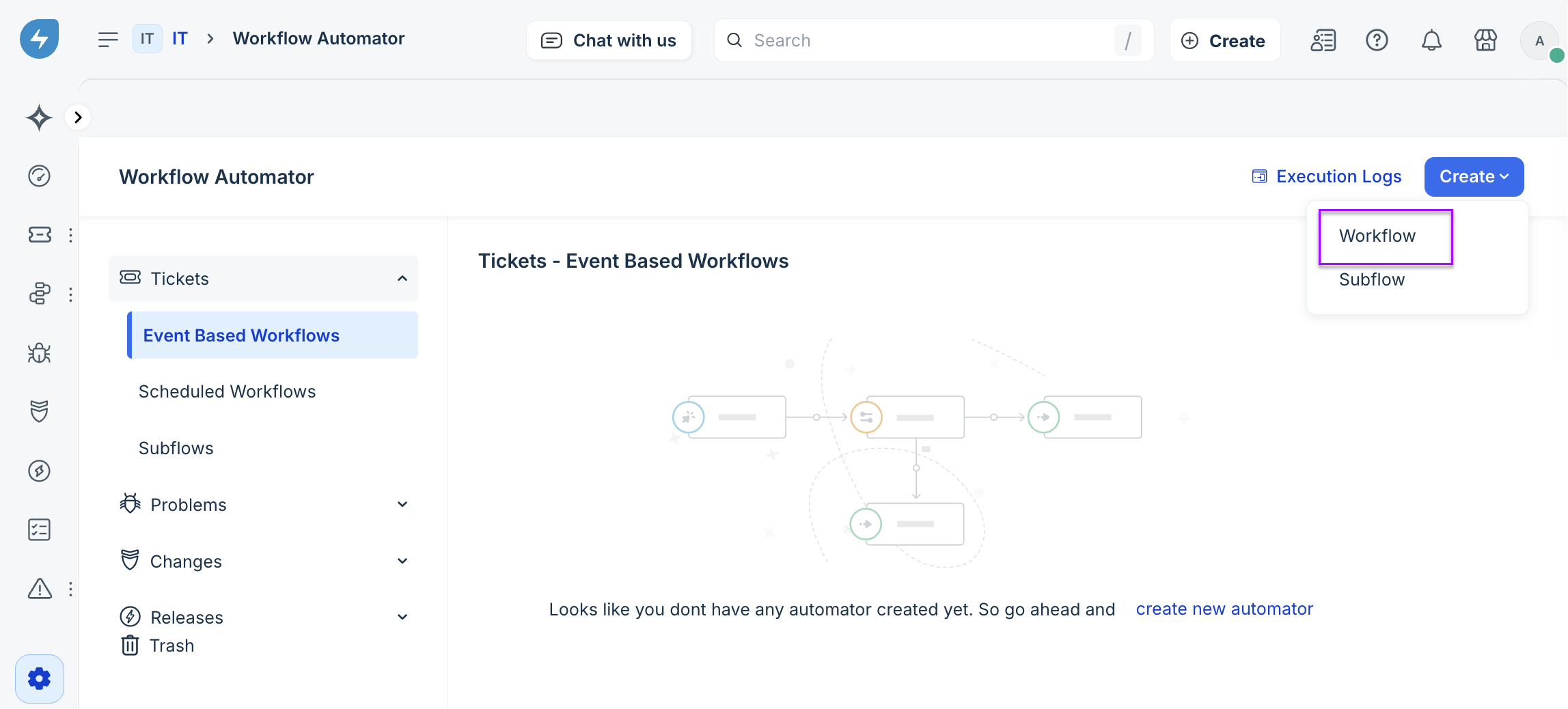
- From the Create menu in the top-right corner, select Workflow.
- On the Create Workflow modal, fill in the following fields:
- Title: Add a unique name for the xMatters workflow.
- Module: Select Tickets from the list of options.
- Workflow Type: Select Event Based Workflow from the list of options.
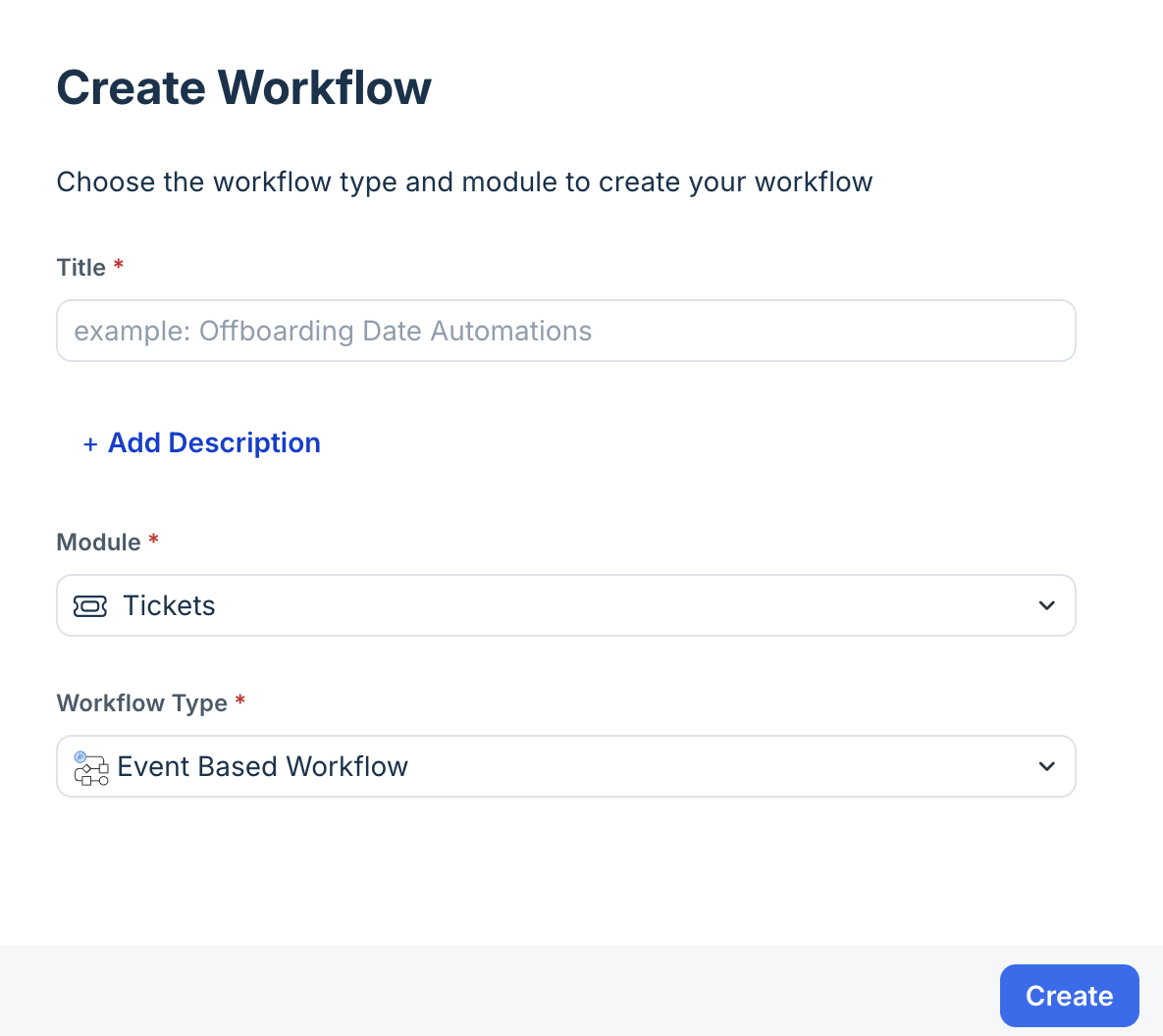
- Click Create.
- The Event step configuration modal will automatically open. Fill in the following fields:
- When any of these events occur: Ticket is raised
- These events can be performed by: Anyone
- Step label field (optional): The step label is identical to the event occurrence labels. You can overwrite the step label if a more descriptive one is required.
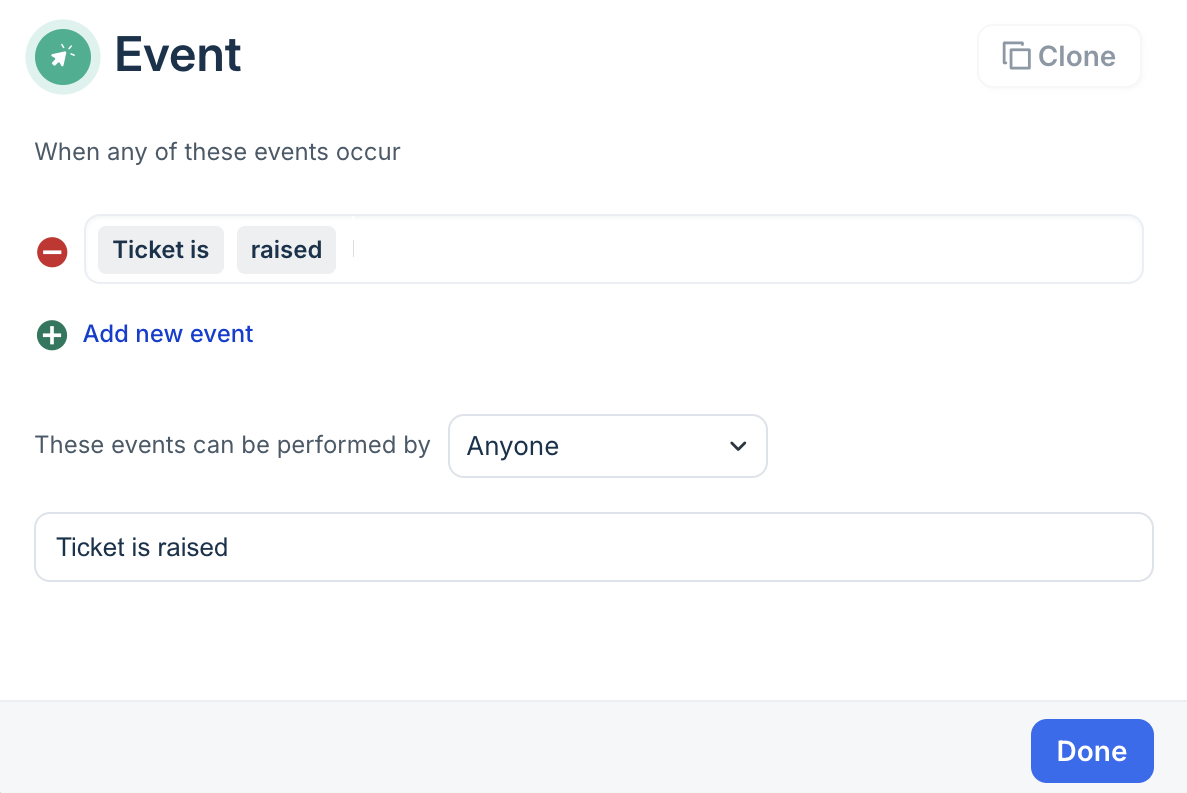
- Click Done.
- Drag and drop a Condition step onto the canvas and connect it to your 'Ticket is raised' event.
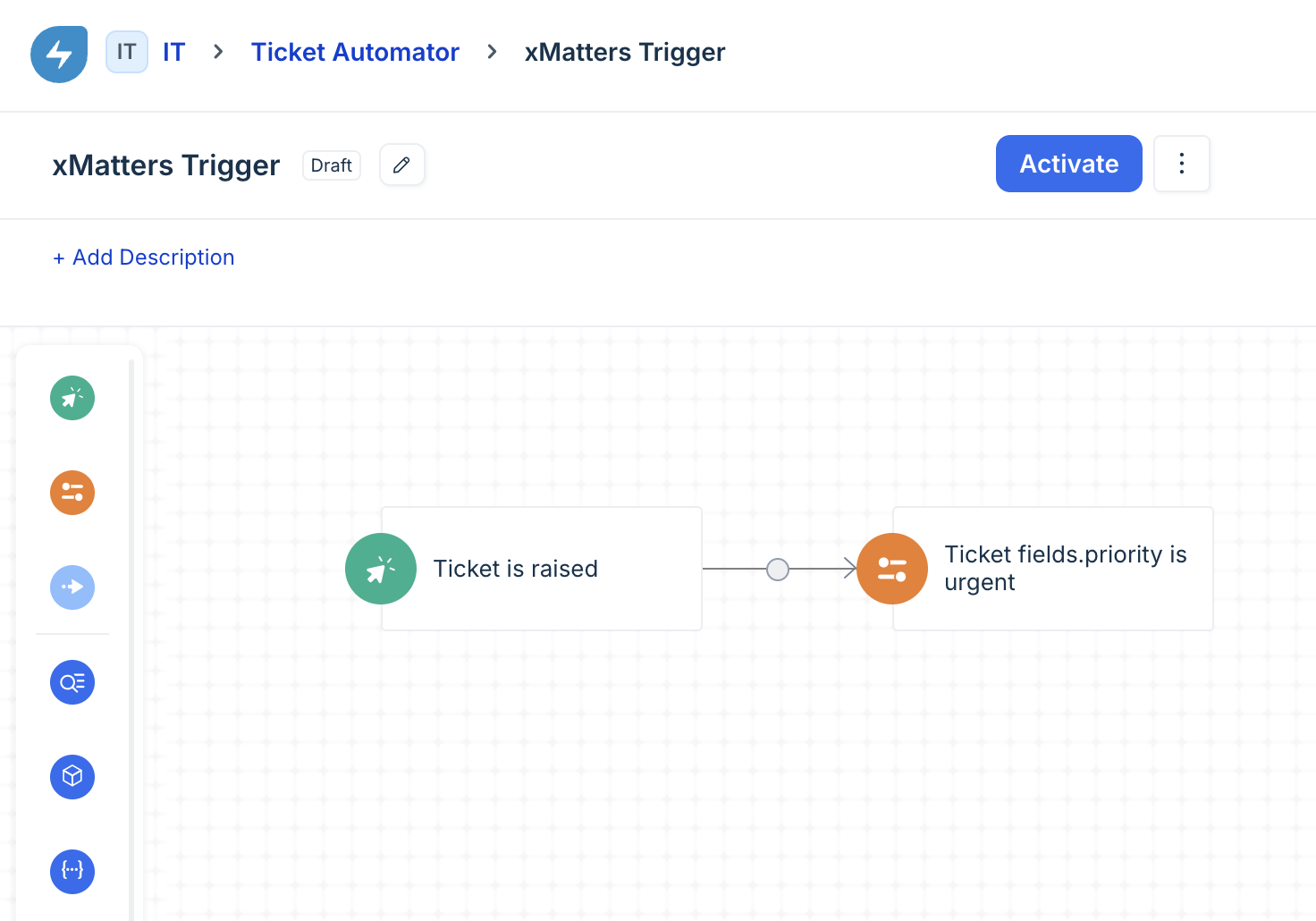
- Configure the step for the conditions that are important for your organization.
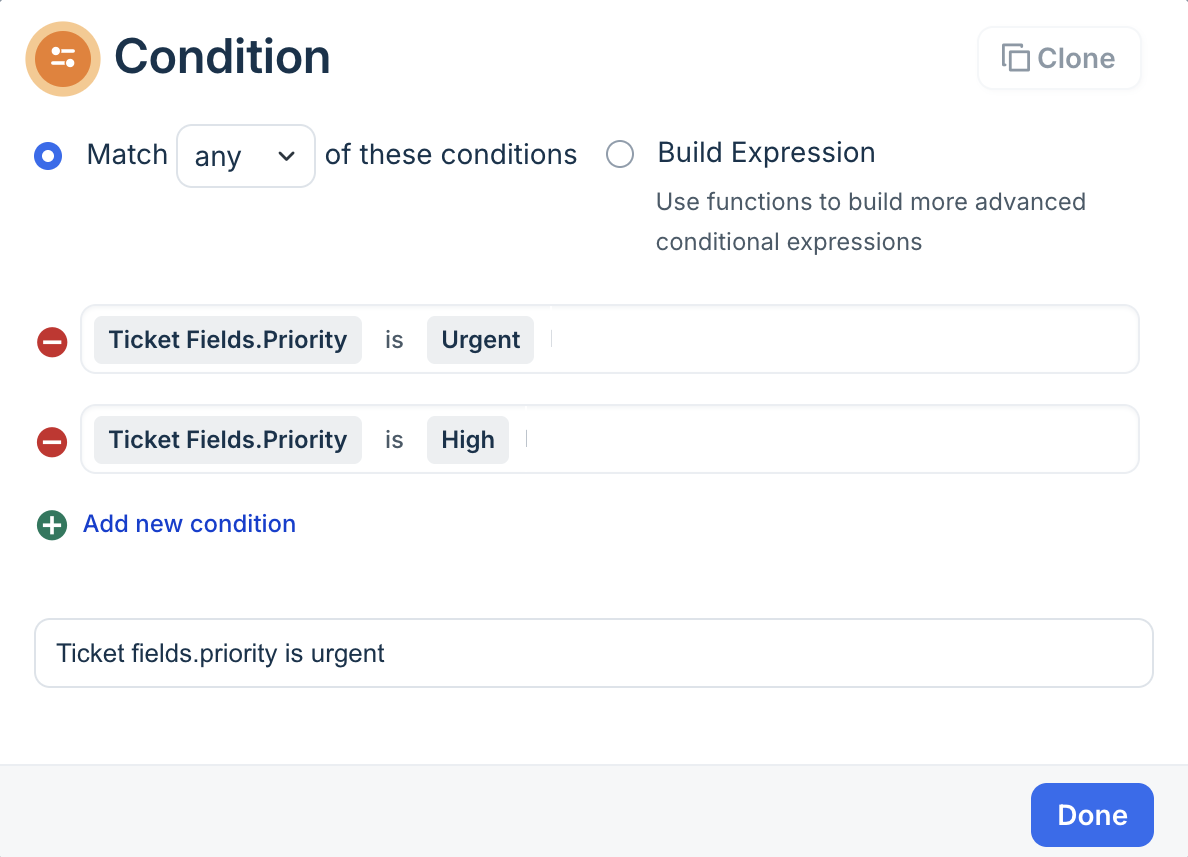
- Click Done.
- Drag and drop an Action step onto the canvas, and attach it to the 'YES' branch of the condition step.
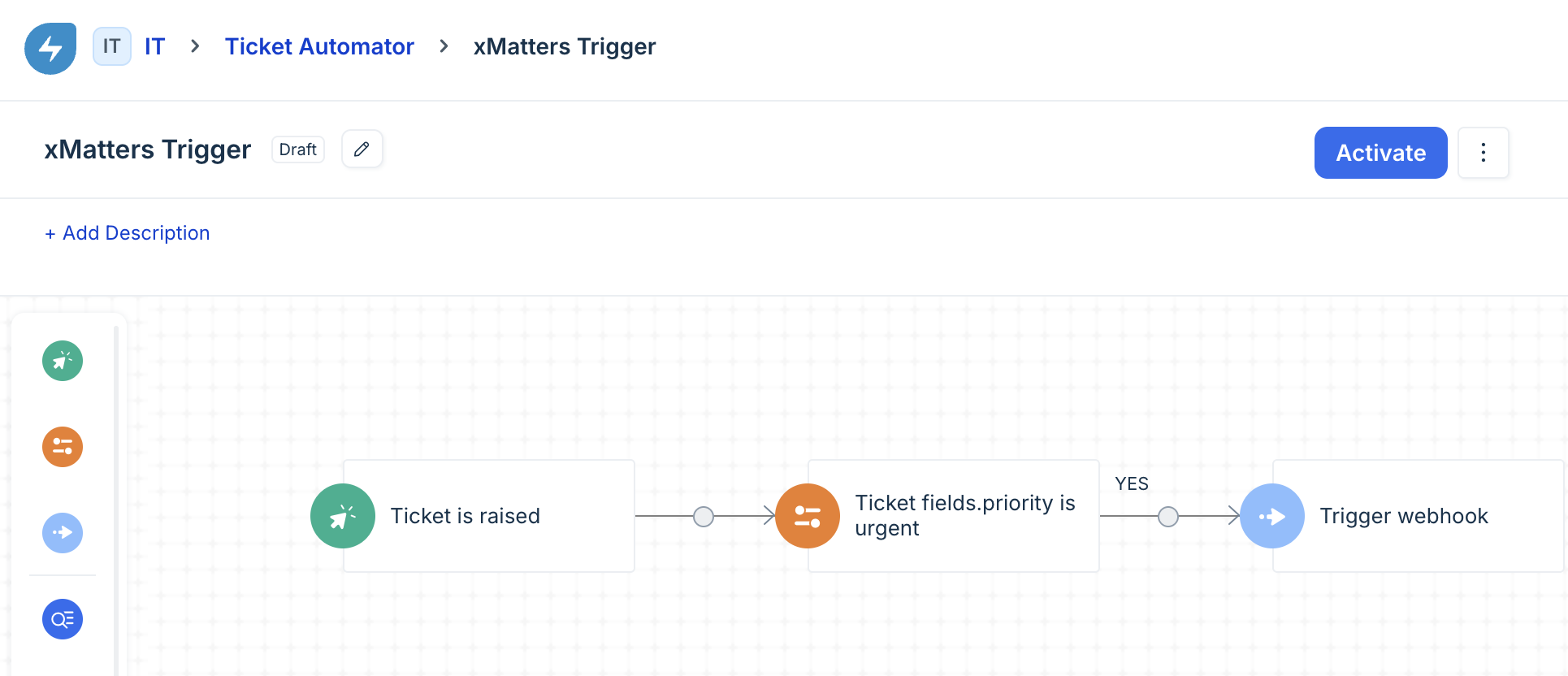
- Configure the action:
- Perform these actions on drop-down menu: Ticket
- Perform these actions on field: Trigger Webhook
- Request type: POST
- Callback URL: Paste the URL you copied from the trigger in Flow Designer.
- Credentials: Select the credential type from the list of options, then enter your Freshservice credentials.
For Basic authentication:
- Credentials: Select Inline Credentials from the drop-down menu.
- Authentication Type: Select Basic Auth from the drop-down menu.
- Username: Username of the authenticating user.
- Password: Password of the authenticating user.
For OAuth authentication:
- Credentials: Select Inline Credentials from the drop-down menu.
- Authentication Type: Select No Auth from the drop-down menu.
- Enable the Custom headers check box.
- Key: Set as Authorization.
- Value: Enter the bearer token.
- Encoding: Select JSON and Advanced.
- Content: Paste the configuration payload you copied from the trigger in the Flow Designer.
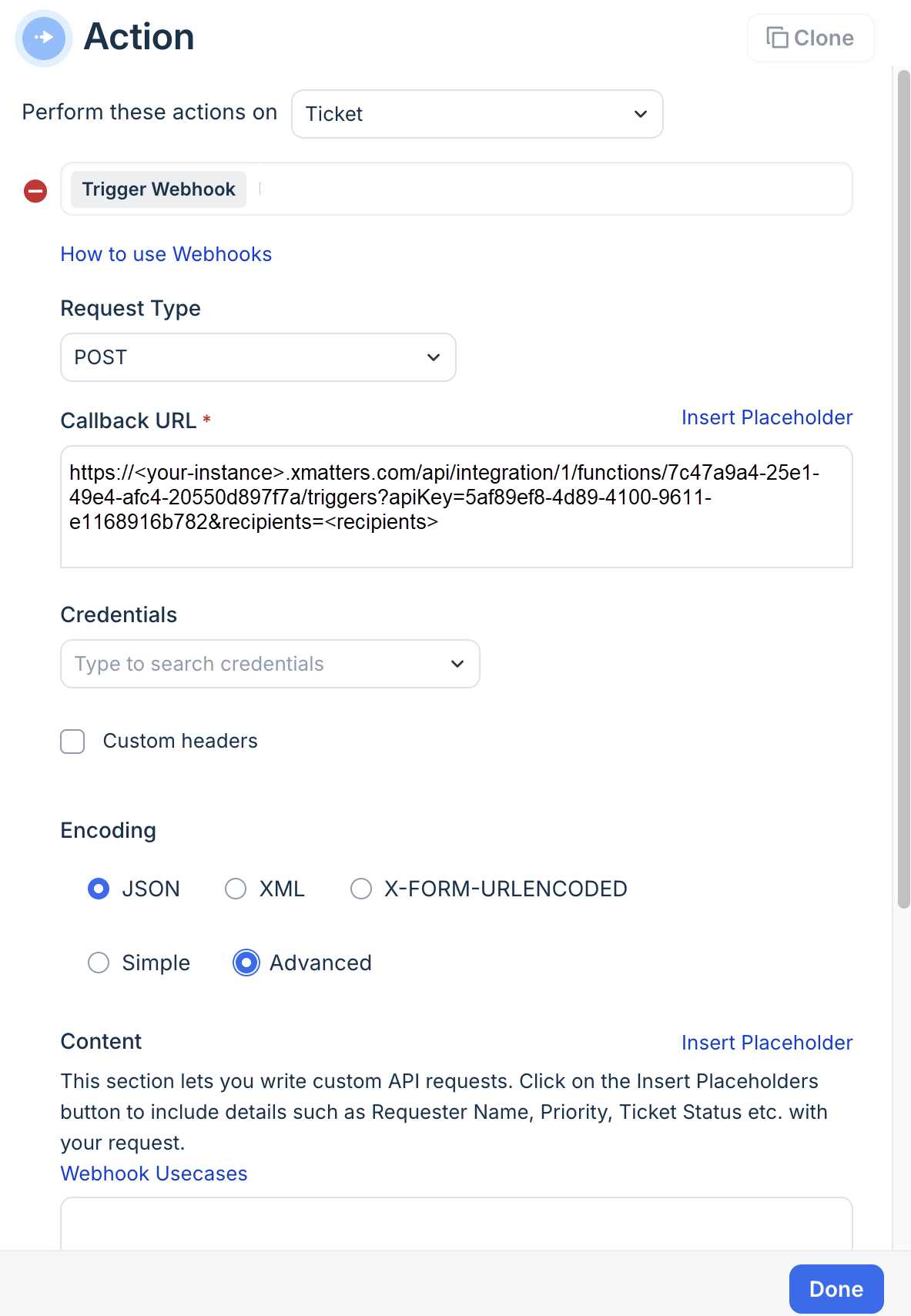
- Click Done.
- On the workflow canvas, click Activate.
The workflow is created and you're taken to the workflow canvas with an Event step already on the canvas.
The next two steps use a Condition step to determine when Freshservice should trigger the webhook and contact xMatters. For example, you can have Freshservice trigger the webhook based on the ticket's priority level, or a specific ticket status. While the steps describe setting the priority of a ticket, you can set the condition step based on your organization's requirements.
Once the workflow is activated in Freshservice, you're ready to use the webhook to trigger automated flows, although we always recommend testing before putting things into use.
Freshservice Alerts trigger outputs
The trigger has the following outputs you can use as inputs to steps further along the flow. If you want to include additional items in the payload from Freshservice and make that information available in the outputs, you can convert the trigger to a custom HTTP trigger and edit the script.
|
Label |
Description |
|---|---|
| Assigned Agent Email | Email address of the agent the ticket is assigned to. |
| Assigned Agent ID | Unique ID of the assigned agent. |
| Assigned Agent Name | Name of the agent the ticket is assigned to. |
| Assigned Group Name | Name of the Freshservice group associated with the ticket. |
| Attachments as HTML | List of attachment URLs, in HTML format. |
| Attachments as Slack Markdown | List of attachment URLs, in Slack markdown format. |
| Attachments as Text | List of attachment URLs, in text format. |
| Category | Category of the Freshservice ticket. |
| Created | Date and time the ticket was created |
| Department | Name of the Freshservice department the ticket belongs to. |
| Description | Content of the ticket, in HTML format. |
| Description Text | Content of the ticket, in plain text format. |
| Due By | When the ticket is due to be resolved. |
| Impact | Impact level of the ticket. |
| Item Category | Item category of the Freshservice ticket. |
| Last Updated | Date and time the ticket was last updated. |
| Priority | Priority level of the ticket as set in Freshservice represented by a number or word. For example: “2” or “Medium”. |
| Requester/Contact Email | Email address of the user who raised the ticket. |
| Requester/Contact ID | Unique ID of the user who raised the ticket. |
| Requester/Contact Name | Name of the user who raised the ticket. |
|
Resolution Notes HTML |
Content of the ticket resolution note, in HTML format. |
| Source | Source of the Freshservice ticket. |
| Status | Status of the ticket as set in Freshservice represented by a number or word. For example: “2” or “Open”. |
| Subcategory | Sub-category of the Freshservice ticket. |
| Subject |
Subject of the ticket as provided by Freshservice. |
| Tags | Comma-separated list of Freshservice tags for the ticket. |
| Ticket ID | Unique ID of the ticket. |
| Ticket Number | Number assigned to the ticket by Freshservice. |
| Ticket URL | Direct URL to the Freshservice ticket. |
| Type | Type of ticket as set by Freshservice. For example, “Incident”, “Problem”, or user specified value. |
| Urgency | Urgency level as specified in Freshservice. |